Showing posts with label linux. Show all posts

Tuesday, 6 January 2026

From Kubuntu LTS to Fedora 43 KDE on my Dell Latitude 7300

I was having some weird issues on Kubuntu LTS on my Dell Latitude 7300, so I decided to try Fedora KDE, since I had read that KDE support has improved a lot in Fedora recently. It's also been awhile since I tried Fedora. I also wanted a newer version of KDE than Kubuntu without going for KDE Neon. I am hoping that it will be more stable than Neon.

As with most modern distros, it's pretty easy to install and doesn't take too long, especially on a reasonably powered machine like this one. This is what I was greeted with on the first login. It's a fairly stock looking KDE other than Fedora Kicker icon and becomes more stock when you apply a default KDE theme. Breeze Dark is always my usual choice for KDE. I think it uses the same or close to the same version of KDE Plasma desktop as KDE Neon, which is always a fair bit newer than Kubuntu LTS. On the plus side it should have a fair few things fixed, but it may be a little bleeding edge.


And here's how I set it up, I have added more virtual desktops, moved the panel to the top and changed the theme to Breeze Dark. This is pretty much how I setup KDE on all my machines.


Apart from web browsing, (using Chrome, there's an rpm available on Google's download page) I mostly use my laptop for image editing with GIMP and a little bit of video editing with Kdenlive.  To get libx264 output working, I did a bit of Googling and installed the RPMfusion repos and installed libavcodec.


Once I did that, Kdenlive could now export to x264 video, and many other options. Updates on the KDE edition of Fedora are handled by KDE's Discover, just like Kubuntu, or on the command line using dnf instead of apt, using these commands to first check for updates and then install them: 

sudo dnf check-update 

sudo dnf upgrade   

I've installed all my usual apps such as Audacious for playing music, VLC and MPV for video playing,  and Soundkonverter for converting media along with qbittorrent and Filezilla. One slight annoyance I had was sending a file to my Android devices with KDE Connect failed for some reason. I disabled the firewall in case that was the issue but that did not work, but then it  turned out that it was SELinux being too restrictive. Disabling it or turning it down a bit will do the job, allowing KDE Connect to work. To disable SELinux, edit /etc/selinux/config with your favourite text editor and set SELINUX=disabled and then save, exit and reboot. Also Mkchromecast (for casting audio to Chromecasts) is not available in the Fedora repos and there appears to be no other way of installing it, except perhaps compiling it from source which I really cannot be bothered with.

Another slight annoyance I have had is getting used to a much newer version of the image editor, GIMP, as the devs for some silly reason have made it so that the default paste is now as a single layer, rather than a floating layer, which is now in the paste sub-menu. "Paste into selection" is now "Paste as floating layer into selection" - very inconvenient!  GIMP has also crashed several times, mainly when it's been left open for a long time, especially between Suspend and Resume. Also, GIMP no longer remembers the last font used in the text tool.


So far, Fedora 43 KDE has been performing much better than my many previous attempts at using Fedora, usually I use it for a few days and find it to be too buggy or there's a big showstopping bug that drives me back to my previous distro.  It's been around 4 months now and I'm still using it and everything is working fine so far, a lot more stable than when I have previously used Fedora.  It's unusual that the only annoying issue I have with this Fedora version is actually just an issue with the latest GIMP and mkchromecast not being available.  


Tuesday, 26 August 2025

Switching from KDE Neon to Kubuntu

 After many annoying little bugs and freeze-ups on KDE Neon User Edition, I decided to ditch KDE Neon for Kubuntu LTS. Neon is just too flakey to use as my main distro, it really is best to only use for testing the latest KDE features. I switched one of my other laptops, a Dell Vostro, over first before switching my 7300 first, just to make sure it worked OK, which it did. KDE on the LTS now has all the features I need and want on my laptops.


It was a painless install from a USB stick to my Dell Latitude 7300, and I have mainly just installed the essential apps I use such as Gimp, VLC, Filezilla etc plus kubuntu-restricted-extras, and this time I have installed Plank Reloaded to use as my dock at the base of the screen instead of customising a panel, and it seems to be working well so far, no show-stopping bugs yet. As usual the first thing I did was switch to Breeze Dark theme and also chose darker themes for login and lockscreen too.

There has also been a firmware update for my Latitude 7300 and that seems to have installed and stayed installed.  I haven't switched over my main desktop yet as that will require much more configuring and the weather has been too hot recently to switch it on! I've also been looking into getting a more powerful machine to replace it too. Not sure but i think Plank Reloaded was causing graphical issues so I removed it. Also occassionally still get some odd graphical glitches, not sure why it is still playing up, I shall have to keep investigating, but for now I shall keep Kubuntu on this Latitude and the Vostro.  

Wednesday, 7 May 2025

Upgrading From My Thinkpad T430s to a Dell Latitude 7300

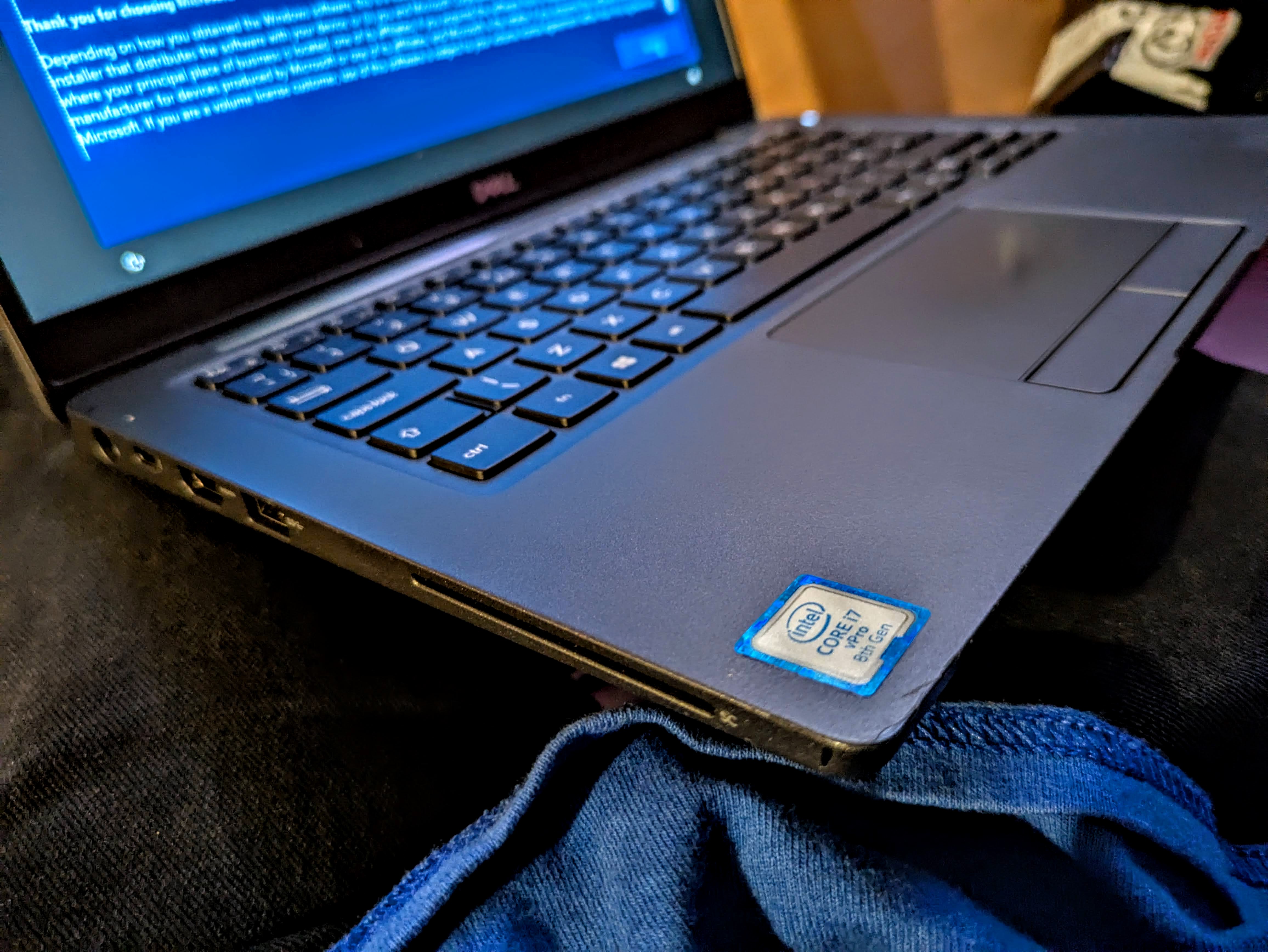
My Lenovo Thinkpad's battery and it's internal battery are both dead or close to dead and I think possibly the power supply connector maybe dodgy too, so I was in the mood for an upgrade. I found this Dell Latitude 7300 on eBay from a reputable seller. It has a 8th gen Core i7 CPU and 24GB of RAM (8GB+16GB modules) which is more than any other machine I have, including my main desktop which only has 12GB of RAM. Cosmetically the only noticeable wear I have noticed so far are the long rubber feet it sits on are hanging off a bit, just needs gluing back on at some point.   

I had a good look through the settings In the BIOS and only needed to enable SMART reporting for drives. I noticed lots of useful settings in there, you can disable the webcam, mic, change backlit keyboard settings, enable boot from SD card etc. That's the optional MicroSD card reader, which is nice, though for me a full size one would have been more useful, but I suppose they went for that to save space, which is also obviously why Ethernet is missing too. I may buy a USB C Ethernet and card reader adaptor for it at some point. With slightly less ports than I am used to it does mean that the 7300 is very light compared to my old Thinkpad. Obviously having no optical drive also saves a lot of space and weight, it's not something I use often other than on my desktop machines. There's a USB 3 port on each side, a HDMI port and USB C for charging, alongside the old barrel connector for the old style power supply. And apparently you cannot damage the machine by plugging in both at the same time. This one came with a fairly compact LITE-ON USB C power brick. There's the usual Kensington lock connector, and also a Smart Card reader which I doubt I will ever use. This is the first laptop I have ever had with USB C charging, which I like because my phones use it too, so it makes things easier. 


The 7300 came with Windows 10 on it's 128GB NVMe SSD but there was no way I was keeping that garbage on this. I thought about upgrading the storage but just wanted to get Linux on it as quick as possible, I think 128GB should be fine anyway. 

I wiped out everything and installed KDE Neon. Everything went smoothly but I advise not leaving it long enough during the live session for the screenlock to kick in, because for some silly reason it requires a password, yet the Neon live user does not have a password set. If this happens, wait long enough for the install to have finished, then shut it down, or CTRL+ALT+F2 to a terminal and reboot it form there, that's the simplest solution. 


Anyway, the install didn't take long and upon reboot I had a nice crisp fresh KDE Neon install. And KDE really does look crisp on the 1080P LED screen, it's pin sharp, and feels much sharper than the one on my old Thinkpad, and has much better colours, the black actually look black! I switched the global theme to Breeze Dark as I find dark themes are easier on my eyes. And lastly I put the main panel at the top and a dock-like panel at the bottom of the screen.

I installed yakuake terminal VLC, Audacious, kubuntu-restricted-extras, gimp, wxMp3gain, krdc (remote desktop client) soundkonverter, synaptic (alternate package manager). KDE reports the battery health as at 69%. I have also installed lm-sensors as per usual and all temperatures are just fine under light usage though I did get a bit worried at one point while Dropbox was downloading loads of files and with a few tabs in Chrome, temperature on one core went up to just over 70, though that's still in acceptable figures according to Dell's site, and it hasn't happened again. It usually hovers around the 30 to 40 C area. I have also  changed the updates in Neon to the non-bundled variety, as it should be.  To disable offline updates, edit the config file /etc/xdg/discoverrc - for example using nano - and set it to off. Another tweak I do is add the 'Show Logout' and 'lock screen' options to the desktop right click menu.


Everything works out the box as with most Latitudes I have had, the keyboard and trackpad are decent, much better than on my old Thinkpad and is in good condition too. The backlight works fine, it's something I feel I cannot live without on a laptop or desktop these days. If you need to change the Fn key behaviour, pressing Fn + Esc toggles the Fn lock, allowing you to use the F keys without the Fn key.


For many minutes I thought there was something wrong with the webcam, but after a bit of googling I discovered that there's a simple little slider switch next to the webcam to enable and disable it. Although there are some KDE specific webcam tools, I find the app called Cheese is the best standalone Linux webcam app, it's very simple to use. It's not great quality compared with a smartphone camera of course, and not something I will use much, but it's nice to know it works. 

One slight annoyance is Discover keeps nagging me about a UEFI dbx update, and every time it supposedly updates, it still comes back again on reboot. I have tried updating on the commandline but I get an error, and I've searched online and not found a solution yet. 


On one cold boot it even did a firmware update but that has not made a difference. 


Update 30/06/2025 - A recent update to Neon has now fixed that UEFI dbx update issue.

Another bit of strange behaviour I had was when I closed the lid, it did not suspend/sleep, and continued to run as if the lid was never closed, which, if left for awhile, made the fans go full blast trying to keep it cool. After a bit of Googling I discovered that the previous owner had disabled the Lid Switch in the BIOS. 


Also one time when I manually Suspend I came back to find it had shutdown at some point, despite having plenty of battery left. I had just done some updates on KDE Neon so that could have caused that issue. When it does suspend and resume, it does so very quickly.


Overall I am very pleased with the Latitude 7300, it has a very nice bright screen, nice backlit keyboard, decent touchpad, and it's the first laptop that I have had that is significantly faster than my main desktop, in every way except possibly in graphics card power. It has twice the RAM and a much newer processor. The only thing of course is I do prefer the dual monitors on my desktop, though I could attach a monitor through HDMI.  I've mostly been using it for all the usual stuff I would do on my desktop, web browsing, image editing in GIMP, and bit of video editing in Kdenlive.  It's been particularly useful n the very hot weather when I don't want to run my main desktop machine. Hopefully it should last me awhile, and it runs so quickly I feel like I need to get a new workstation to match it! 


Monday, 10 June 2024

How To Install Mkchromecast on Ubuntu and Ubuntu based Distros

Mkchromecast is a way to stream any sound from your desktop to your Chromecasts, which to me makes it a lot more useful than the Android app for streaming, particularly for streaming offline music to the no longer made Chromecast Audios. Just like Google Home, you can stream to just one or to a Home Group. As per my previous article, I was using Mkchromecast on Manjaro until recent updates killed it, so I switched that particular laptop to KDE Neon, which is my favourite distro. Anyway, here's how to install Mkchromecast: 


Firstly, install git, and then download Mkchromecast from git: 

    sudo apt install git

    git clone https://github.com/muammar/mkchromecast.git 


Then, switch to the mkchromecast directory and install the dependencies:

    cd mkchromecast

    pip install -r requirements.txt


Then install Mkchromecast

You can install from Discover or with apt (sudo apt install mkchromecast) and now it should work fine. I usually use mkchromecast -s to scan for devices and choose my Home group to stream all simultaneously. It's a shame Google discontinued the Chromecast Audio because it works pretty well, and is much cheaper than expensive streaming solutions like Sonus.


Tuesday, 21 May 2024

From Manjaro to KDE Neon on My Dell Vostro 3300

So there was a huge update on Manjaro recently to KDE plasma 6 and it killed Mkchromecast again on my Dell Vostro, but this time I wasn't able to get it working again. However I worked out how to get it working in 'buntu based distros, so I decided to switch it to my preferred 'buntu-based distro, KDE Neon. Neon is based on the Kubuntu LTS but with the latest KDE installed. The installer was even easier and smoother than it used to be, so after backing up stuff I wanted to keep, I installed Neon in about 5 or so minutes. This machine has an old hard drive but it still feels fairly snappy to use. 


One of the first things I like to do with KDE now is turn off the stupid Offline updates setting. Seriously KDE devs, this isn't Windows, I don't want or need to have updates run on shutdown! Linux doesn't need to reboot for most updates! I also switched to Breeze Dark theme, and moved the panel to the top, disabling the new floating panel setting. That's what I like about KDE, everything is configurable, unlike Gnome where they have a like it or lump methodology. And the search feature in Settings works very well. Also I discovered that my Dell Vostro has a back-lit keyboard, I accidentally hit the Fn keyboard shortcut to turn it on! 


I also installed all the usual items such as GIMP, Audacious music player, FilezillaCantata (mpd front-end) Yakuake (a drop down terminal) and Kubuntu-restricted-extras. In general this fresh install has gone very smoothly compared to an upgrade, though I did have a slight issue with menus not popping up from the system tray, Switching from Wayland to X11 at the login screen sorted that out. Another little tweak I do is re-enabling the Leave option in the desktop right-click menu. So, other than that slight issue, this fresh install has gone very smoothly, and I'll likely keep KDE Neon on this laptop until the hardware dies whenever that might be, this Vostro is a tough old thing.


Wednesday, 6 March 2024

Upgrading to KDE Plasma 6.0 - a rocky start for KDE Neon User Edition

When I read about the first stable release of KDE Plasma 6, I thought I'd probably just wait awhile until I try it, but of course I forgot that KDE Neon User Edition would get it so soon.  Well, the update happened and the first thing I noticed, on my main desktop machine, was that for some reason the onscreen keyboard came up on the login screen, large and covering half the screen! To fix this I found a solution on a forum, which entails editing sddm.conf like so:

sudo nano /etc/sddm.conf

and then add 

InputMethod=

Save and exit and the onscreen keyboard shouldn't appear again on the login screen. Also it's a rather basic login screen for some reason, no matter which theme I choose. Update - switching to the default Breeze login theme fixes this.

Then I noticed that Wayland was set as default again, after I tried to login and it wouldn't work. Nvidia is the reason for this, but thankfully X11 is still an option and that works. Then on the first few logins I noticed a lot of little errors I think some parts hadn't updated, so a quick trip to Discover, the package manager to make sure everything got updated was needed. And then a day or so after i updated, there was some major bug fixes, which has made things better but i am still getting the odd Plasma crash, usually after logging in and opening Chrome for the first time. Right now the desktop seems to have has settled down and actually feels a bit snappier than Plasma 5 was. I am still getting the occasional error and a few graphical glitches, black screens occasionally., 

KDE Activity manager constantly crashed with the "kactivitymanager closed unexpectedly" error.until I found a solution,  Navigate to ~/.local/share/kactivitymanagerd/resources and delete database, database-shm and database-wal. You will lose your favourites in the KDE menu but at least the annoying kactivitymanager won't keep crashing! Amother odd thing is that the Print Screen key does not open Spectacle anymore.   

Another minor issue is that since Plasma 6 is qt6 based, so Latte Dock no longer works, and will never be updated since it's been abandoned by the lead developer. A shame because it's been my favourite OSX-style dock for years. For now I have added another KDE panel, auto-hiding, and using the new floating panel feature. It's not exactly pretty, but it's functional. I shall miss the magnification effect from Latte, and I can't seem to get the panel to go translucent, even though I have set it to. Floating panels are default now, but to me they look odd on the normal panels so I have disabled them for those. Another minor niggle is that Dolphin always opens without the sidebar even though I closed it with it open. It used to remember my choice. 

On my main laptop, a T430s Thinkpad, the update installed more smoothly, there was no kactivitymanager errors but still have the same basic login screen and had to disable the onscreen keyboard like with my desktop machine. No graphical issues of course, because it's got Intel graphics. One thing I have noticed changed is that when I close the lid then open it again, the keyboard backlight now goes off instead of remembering which setting it was on. My laptop does not have the Dolphin sidebar issue though.

The KDE Neon developer blog has put up an apology for the number of issues with KDE Neon User Edition. Apparently the testing and unstable versions have been running more smoothly. Hopefully they'll send out more fixes soon.

You can read more about what's new in KDE Plasma 6 on the KDE website

Tuesday, 19 September 2023

From KDE Neon to Manjaro KDE on my Acer Chromebook 14

So, I only had KDE Neon on my Acer Chromebook 14 CB3-431 for a short time but there was no way round the performance issues with YouTube at 1080p. You can't really install another DE on Neon because the way it's built it would break it trying to install Lubuntu or other desktops. I decided to install Manjaro KDE, since it is running so well on my old Dell Vostro. Also, on Manjaro (and Arch) it has the most supported desktops, either unofficially or through the community, so if I need to choose a different desktop, that's lighter on resources, it's easy enough to switch between them...or so I thought... 


As with KDE Neon, I used my Dell Vostro laptop to put the Manjaro KDE ISO onto a USB stick using OpenSuse Image Writer.  Installing was a Breeze, just a USB boot and install from the live desktop as with Neon, since the tricky bit of replacing the bootloader on my Chromebook was already done as per my previous post. And, also as before, the first thing I did after install was set shortcuts for the Display brightness in KDE Settings, and set it to Breeze Dark theme so I wasn't half blinding myself on every boot! I also set all the other shortcuts again while I was there. And yet again re-adding the Leave option to the right-click desktop menu. I am not going to install too much, as it only has a 32GB onboard eMMC, and there's currently only about 8GB left. As with KDE Neon, all the hardware works fine, including sound, trackpad, suspend and resume, webcam, etc. Also one quick fix that needs doing on Manjaro is getting ssh enabled, since for some reason when you install the service it isn't enabled by default, and I found a fix here.

Then I installed Google Chrome using this tutorial (I used the second option of installing it using the AUR Helper, yay, which can be installed from the package manager if required) and made sure that YouTube played 1080p without stuttering or stopping completely, which it did just fine. Hurrah! I also installed any updates available through Manjaro's package manager. After a reboot for the kernel update, I then installed my favourite apps again, such as Audacious, GIMP, Filezilla, etc, though I didn't have to install VLC this time since it was already there. I have found that if I want to watch YouTube videos with as little jitter as possible, it's best to only have YouTube open, and absolutely no Facebook tabs! Facebook uses way too much memory and CPU. 

I also tried to install Lxqt desktop, just to see if I could save some resources, using these instructions, with no success, it does not load the whole desktop, just openbox itself, and caused a very slow boot too for some reason. I then tried Fluxbox desktop but the extra packages listed on that tutorial were unavailable to install and I couldn't get any apps to run. And on the reboot, it failed to boot. So very frustrating. So it turns out switching desktops on Manjaro is not as easy as I thought! I then had to reinstall and setup everything again.... It's a good job installing is so quick! So if you do want to try other desktops with Manjaro, it's best to just download the specific ISO for that desktop. 

So Manjaro is now running fine again. I could have used Google's ChromeOS Flex to extend the life of this Chromebook but I don't really want to go back to ChromeOS after the flexibility and freedom of running Linux on it.  It has a nicer screen for photo editing than my Thinkpad so that's what it will get used for, when not using my main desktop. The only slight downside is the lack of storage space, have to be careful not to use too much of the 15GB or so left on the drive. I have put a little USB stick in the side just in case I need it. I'll keep Manjaro KDE on it for as long as it continues to work well on it. Feel free to suggest any other distros that might suit it better. 


Sunday, 17 September 2023

Installing a full Linux distro on my Acer Chromebook 14 CB-431

 So I was having trouble with my Chromebook. When editing photos with Google Photos it would slow down then freeze. After testing in another user account with no extensions or add-ons, it still had the same issue. I then went last resort and powerwashed it. This is simple and quick way of wiping back to factory settings....and then I decided to install a full Linux distro on it.... 


My Acer Chromebook 14 has been End of life for awhile now, (it was released in 2016) which means no more fixes for issues, and no new features. I'd already removed the hardware write protection screw inside the base in preparation for possibly putting Linux on it awhile ago, I had just put off doing it until now. Luckily there's very useful guides on the Arch Linux Wiki on how to put Linux on a Chromebook. I used the guide for my specific model, here.  It is a CB3-431, 4GB RAM, 1080P screen version (Acer also did a 2GB, 720p screen version). 


There's a couple of different options on the Arch Wiki, and I chose the Coreboot route. Linux only, no dual boot. After installing the custom bootloader, I went ahead with installing Linux as normal, wiping all the internal 32GB storage. I used my favourite distro, KDE Neon, which is basically Kubuntu LTS but with the latest version of KDE. I wrote the ISO to a USB stick using OpenSuse Image Writer, which worked perfectly, it's the first time I've ever used it. 


After a normal uneventful install, KDE Neon used just under half of the Acer's 32GB internal storage. It still boots pretty quickly. The main thing I noticed after logging in for the first time, was the display was on full brightness and of course in ChromeOS the Brightness keys are on what would be the normal F keys in Linux. You can use change shortcuts in KDE settings, and create custom ones. For Brightness Up and Down I used Ctrl + F6 and F7. For for the Volume keys I used Ctrl + Shift + F8 and F9  (which were the Volume keys in ChromeOS). The Fullscreen key is F4 so I added Ctrl and Shift for that too. There's a smaller number of F keys to standard so I had to choose another shortcut key for my favourite drop-down terminal emulator, Yakuake. As expected, the Google/Search key becomes the Super Key aka The "Windows key".  


Some of the fixes on the Arch wiki were not needed, such as those for the sound and touchpad. The trackpad seems to work fine, though right clicking only works with the default setting, clicking on the bottom right corner of the trackpad, instead of the two finger clicks that I am used to. Just a case of getting used to that, along with the new keyboard shortcuts. 

The sound works out the box and one advantage of running Linux on this Chromebook is you can increase the Volume beyond 100%, which you cannot do on ChromeOS, as the audio was far too quiet, in headphones or from the speakers on this machine. I used to have to use a Chrome extension called Volume Master to boost the volume on ChromeOS, but its downside was that YouTube couldn't run fullscreen while it was in use. Although having said that, sometimes after boosting the audio for some time, it sometimes goes to just playing a tone.  Another option I can now use is a USB audio interface, like my M-Audio M-Track Solo, which is something else I couldn't use with ChromeOS. 

After all the main tinkering, it was just a case of installing all my usual favourite apps, such as VLC, Audacious, Cantata, FIlezilla etc. And finally, bringing back the Leave option in the Desktop right click menu and removing the silly offline updates feature.  Performance is fairly snappy on first impression, considering it only has 4GB RAM. Lm-sensors reports the normal temperatures as 45 Deg C at idle, rising to just under 50 under heavier loads. Suspend and Resume work fine and battery life doesn't seem to be impacted. It does struggle with 1080P YouTube in Chrome, but it plays a little bit smoother in Firefox. I'm not using Latte Dock as I would usually, because that uses more resources than it should. KDE isn't as heavy as it used to be but I might have to install a distro with a lighter or minimal desktop environment.

 I've been impressed with the full 1080P screen on the Acer ever since I first got it, and KDE looks fantastic on it. I have always preferred to edit photos in Google Photos on the Chromebook instead of on the dull screen on my Thinkpad T430s, the colours are more accurate.  


So far, I am pleased with full Linux on my Acer 14, and I am not missing running ChromeOS yet. It can't run Android apps the same way as ChromeOS did, but that's something I rarely did. They often felt a bit awkward on the desktop. It boots pretty fast, getting to the logon screen not much slower than ChromeOS did. I only wish it had a backlit keyboard, but then at the price it was originally that was to be expected. Installing Linux has basically extended the life of this Chromebook and I'll keep using Linux on it until the device dies, which will probably be whenever the 32GB eMMC onboard storage is dies. It is soldered to the main board so it's not really upgradeable/replaceable. Until then, this Acer will get plenty of use, probably mostly YouTube and Google Photos when I am away from my main desktop. I just have to decide whether to stick with KDE Neon or switch to a lighter weight distro.  

Wednesday, 12 July 2023

Shotcut Video Editor: How To Create a Simple YouTube Video With a Still Image

Here's just a quick and simple tutorial on how to make a basic video from a still image and some audio. I usually make these simple videos for uploading my own music to YouTube. I used to use web apps or command line stuff for this but i find it a lot easier, better, to use a decent video editor. Shotcut can usually be found in your Linux distro's package manager if it's not installed already. I am using KDE so i usually use Discover to install Shotcut. That usually works best though if there's an issue you could also try the Appimage, or, as a last resort, the Flatpak or Snap packages but they won't integrate as well with your distro. Shotcut is also available for Mac and Windows.

1. Click Timeline, if the Timeline is not showing. 


2. Right click on the Timeline, select Track Operations and then choose select Add Audio Track (or use the keyboard shortcut)


3. Drag an audio file onto that track, so now you should have an audio file in like so:

4. Right click on the Timeline, select Track Operations and then choose select Add Video Track


5. Drag an image from the file manager onto the Timeline, Hover over the edge of the image in the TImeline, drag so it fills the whole line, making sure it lines up with the audio track at both ends. You may also like to experiment with adding effects - click on the image or audio and then click Filters, click the plus symbol and choose some suitable effect, I often use the Fade Out Video and Fade Out Audio filters, 


6. Click Export File, choose a name and press enter to save it. By default it saves as an H.264/AAC MP4 video, which is suitable for Youtube. 


And that's it, just drag the resultant file into Youtube's upload box and it should work just fine. 


Here's a YouTube upload of mine that I made using Shotcut. 

Tuesday, 28 February 2023

Returning to Music Player Daemon - Cantata vs Mpdevil

A while ago I tried Music Player Daemon (MPD) with my music, but found it wouldn't see half my collection and I gave up on it. That was a long time ago so I recently decided to try it again to see if it had improved and also I have recently been getting annoyed with usual music players, Clementine and Strawberry. Clementine is basically no longer maintained but it's one of few players that can cope with 80 thousand tracks! And it has a nice Android app to control it from my phone. But it's got some annoying bugs that will never be fixed so I have been trying to look for alternatives. Strawberry is a fork of Clementine but doesn't fix the bugs that bother me and there's no Android app for it, so I decided to give MPD another go since I haven't tried MPD for years.


This time when I installed MPD, I made sure it ran properly as my user rather than its own user, with the config in my Home folder. And this time it seems to see all my collection, and has clearly improved since I last tried it.  I used the brilliant guide on the Arch wiki and adapted it for KDE Neon (a distro of sorts based on Kubuntu but with latest KDE). Most of the guides I used before were for Ubuntu but usually they would create an MPD user, which is where the problems had begun.  Apart from setting the music directory, I have enabled Replaygain for audio normalisation. The sound was also distorting slightly on my desktop machine without Replaygain enabled. I haven't yet worked out how to make MPD run on startup in KDE, I usually just run it in my favourite drop-down terminal, Yakuake. Edit: you can set mpd to run automatically by adding it as a service with this command: systemctl --user enable mpd.service

The great thing about MPD is it runs in the background consuming very little resources, and then you control it with a front-end of your choice, either lightweight or heavy and control it from anywhere on the local network. At first it had problems choosing the right soundcard, as I use a USB interface, but changing it to use Pulseaudio instead of ALSA fixed that. One slight annoyance with MPD is it does not remember the previously played track or playlist the next time MPD is started.

This time round, after looking round at other front-ends, I ended up choosing Cantata as it seemed to be the best of thea KDE friendly apps, it works well  apart from the 16,000 track limit on playlists is a bit annoying. I have now got into a habit of just listening to albums in full or all of one artist etc, whereas in Clementine I would just have all my 80,000+ in a single playlist on Shuffle! 

I then discovered Mpdevil, which although a fairly simple player, it looks more modern than Cantata. I have Mpdevil running nicely on my main desktop and my main laptop, both are running KDE Neon (a distro based on Kubuntu but with the very latest KDE version). I also have MPD on my old Dell Vostro, which runs Manjaro,

One very noticeable difference between the two is that Cantata has a "locate in Library" option in the right click menu whereas Mpdevil only has the option of "Show" which locates the track in the file manager which is far less useful to me. I usually want to find the album a track is from and play it. 

Mpdevil 'Show' which opens a location in a file manager

Cantata 'Locate In Library' which shows where the track is in the app.

One other thing I really like in Cantata is it's easier to find and switch between MPD servers in the settings with it's Discover button. It isn't as simple to do that with Mpdevil. 

Mpdevil is basically a more minimal player, it lacks Last.fm support and, as far as i can tell, doesn't fetch missing covers, whereas Cantata has both of those features. As far as I know, there isn't an easy way to get Scrobbling in the MPD backend itself so it's useful to have that in the front-end. If you want a great looking player and don't need advanced features, mpdevil does the job fine but if you need the advanced features, Cantata does a better job, so I will stick with Canatata for now. I am open to suggestions though for an even better KDE-friendly MPD client. 


Tuesday, 17 January 2023

I got a Dell Vostro 3300 for a bargain price and it works just fine after a few upgrades.

 A charity I used to volunteer from put a Dell Vostro 3300 on their eBay and idly just put the minimum bid on, 20 quid, thinking I would probably not get it, got outbid once, but then put a bid on an hour before it ended, won it with that 22 quid bid, absolute bargain! It's got a 2.27Ghz i3 CPU, and arrived with a single 2GB RAM stick and 320GB HDD installed. 

There's just two screws to remove to release the bottom panel to access Memory and hard drive and two screws to release the HDD. There's a Windows 7 COA under the battery but I doubt I will ever need that. I run Linux on all my laptops.


I then did a bit of musical chairs with parts in my other laptops. I took 8GB of RAM from a poorly Thinkpad X201 and put that in my 2012 Macbook Pro (been meaning to do that for a while) and put the MBP's original 4GB in the Vostro. Then I replaced the 320GB hard drive in the Vostro with the SSD from my Dell Latitude E6500, which has Manjaro KDE on. The E6500 is one of the oldest laptops I have in use and is a bit tatty, so the Vostro makes a good replacement for it. I won't bin the E6500, it'll go on the spares shelf. Once the SSD was in and everything put back properly, it booted up the Manjaro KDE install with no issues.      

The only slightly annoying downgrade from my other laptops, but particularly the E6500, is it only has VGA out rather than DisplayPort. There's an eSATA port which I doubt I will ever use, 2 USB 2.0 ports (one either side) and an Ethernet port. The trackpad is good, just as good as the one on my ThinkPad T430s and the keyboard is decent (though has no back light, like the Thinkpad does, though Dell did have one as an option on a slightly better spec model). 

The Vostro has a reasonably decent 13.3 inch anti-glare screen with a default resolution of 1366x768, which is a bit low compared to the 14 inch on the Thinkpad T430s, which runs at a very nice 1600x900 resolution. The Vostro was basically a midway point between the consumer garbage Inspiron range and the Latitude business range, so this laptop doesn't quite have the best components compared to Latitudes but is still a solid machine. In terms of other specs, it has a slightly slower i3 M350 CPU than the i5-3320M in the Thinkpad and a few less ports, and no USB 3. There's an SD card slot but no Express Card slot to add more ports. Overall, it's a handy little laptop, especially for just 20 quid! It runs Manjaro KDE perfectly fine, and is a useful replacement for the E6500, so I am pleased with it.