Showing posts with label hardware reviews. Show all posts

Tuesday, 8 November 2022

From a 2006 Macbook to a 2012 Macbook Pro, what a difference!

So, I got a mid-2012 MacBook Pro as a birthday present, yes I know what you're thinking, I'm a Linux man, why have a Mac? Well, right now, making music on Linux is tricky, the JACK control system is a pain to setup, still. I've always made music on a Mac, from my old PowerPC Macs - Powermac G4s, iBook G4 and Powerbook G4s - then eventually to my old white 2006 MacBook (which I got in 2016) and now this Macbook Pro. I still occasionally use a Powermac G4 MDD for older PowerPC-only music software. I have a whole bunch of tools and plugins I have collected over the years. This is the first time I have had a reasonably quick Mac that can run a recent version of Mac OS (and can be made to run the latest, Ventura), and up to date apps too. 


The mid 2012 is still the best choice on a budget, since it, if I remember rightly, was the last to have upgrade-able RAM, up to 16GB na done of the most repairable before everything became soldered and glued together. Mine currently has 4GB but it's still usable for what I want to use it for, Garageband and plugins. And that's pretty much all I plan to use it for, and for any other occasion where I can't find a way to run something on Linux. This MBP is in good condition, other than the rubber feet need sticking on a bit more firmly, they keep falling off! There's no obvious scratches or dents. It came with a replacement 60W PSU which works fine. 


The Macbook Pro came with Mojave installed on a 500GB hard drive, but I decided to upgrade it to an SSD and dual boot two Mac OS versions, Mojave and Catalina, so I can run older 32bit apps that Catalina cannot run. 


I took the SSD out of my old 2006 Macbook, which was already in two partitions (I had it dual booted for awhile but then stuck with just Lion and a data partition), and put it in the MBP. Then I attached the original HDD via USB and booted off it to install the two Mac OS versions on the SSD, including transferring settings and data off it.


The guts of the machine are accessed from underneath, by undoing a bunch of screws and taking the base off, I followed the guide on iFixit. I did also try putting the RAM from my old Thinkpad X201 in it, but it didn't seem to be compatible. One day I will get two decent 8GB sticks to max it out.  


The only thing I am not keen on, hardware wise, is the glossy screen (apparently they can be replaced with a matte one but I am not bothered enough to do that). The keyboard is decent enough and it's the first Mac I have had with one that  is backlit, as is my Thinkpad T430s too. I now miss having that whenever I use a laptop without it, such as my old Acer Chromebook 14.


The MBP feels slightly heavier than my Thinkpad T430s, due to the metal body, which takes a bit of getting used to when sat on my lap. It has almost the same CPU (2.5 GHz i5 instead of 2.6 GHz) and the same Intel 4000 graphics as my T430s.  Naturally the Thinkpad has more ports, it's a bit annoying having only 2 USB ports on this MBP. I usually have USB MIDI keyboard, M-Audio M-Track Solo external soundcard/input box and a mouse plugged in. I prefer the precision of a decent mouse over a trackpad. I've actually been lazily using an old Apple keyboard as USB hub! I should find or buy a proper hub sometime, though I'm sure I have one somewhere...        


I am not that keen on the Apple App Store, it feels kind of bloated and there's a load of paid for apps, including a "Pro" version of FileZilla that I didn't even know existed. Apparently it has a paid cloud service and other cloud plugins. The free version is not on the store but can be downloaded from their website. I've also removed a lot of apps off the Dock I don't plan to use like Apple Maps, Music etc, all I plan to use it for is music production.  


Although Garageband is right there in the App Store, it wouldn't let me download and install because Catalina is not new enough for the latest version. The newest version requires Monterey. I found version 10.3.1 elsewhere to download, to use on both Catalina and Mojave. A dual boot is a little inconvenient when you can't easily share stuff between them, particularly with file encryption enabled on Catalina. And I am still not really keen on Finder, it's a poor file manager compared to the powerful Dolphin on KDE that I am used too. Also, out the box, I miss certain open source tools, like wget on the command-line. To do ad that, you need to install MacPorts, which requires Xcode, which I can't install from the App Store because, yet again, Catalina is apparently not new enough! The newest version it can run is 12.4, old versions can be downloaded manually from the Apple developer site, it is a 10.86GB download.


It's nice to finally have a fairly up to date version of Mac OS that has the dark theme that older versions didn't have. I am not so keen on how Disk Utility seems to have been dumbed down compared to the version in Lion that I was used to.  Also, I chose to have two Mac OS versions so I could still run old 32 bit apps, but sadly Native Instruments B4 just does not show up as an instrument in Garageband, though it will run as a standalone app. it seems Native Instruments moved on and want you to buy their Komplete software and plugins. The organ emulator built into Garageband just doesn't match the B4. I can't seem to find any advanced settings for it. On the plus side, the newer Garageband has better drums, and generally better built-in instruments, I particularly like the Mellotron sounds they've added. 


I couldn't use this Macbook Pro for everything, but it's fine just for music production. Mac OS is just too restrictive for me, it feels like a straitjacket compared with the freedom of  Linux, particularly KDE Plasma desktop. If I don't like the default theme on KDE, then I'll change it, change the icons, change the titlebar theme, or even swap out KDE for something else if I want to. Whereas on Mac OS there's two themes (light and dark), a single set of icons and that horrible file manager, Finder. And as mentioned before, I really like Dolphin file manager on KDE and I don't like basic file managers like Nautilus and Nemo on Linux which are too similar in dumbness to Finder. Having said that, this 2012 Macbook Pro should hopefully perform its one job of making music for a good few years, particularly if I max out the RAM to 16GB and, at some point, use Open Core Legacy Patcher to make it run Monterey and/or Ventura. What I replace with it after that I don't know, but I'll use this until it dies, so watch this space!  


You can find my music on my Audius page.


Tuesday, 5 January 2021

Unboxing and Quick Review: Chromecast with Google TV

I've been using Chromecast audios for a few years and I used to have an original Chromecast (video), the one that started it all, but have somehow lost it at some point, but then that's the problem with such tiny devices! If they're not attached to the telly or computer they are easily misplaced! I recently got the chance to setup the latest Chromecast for a friend, the snappily titled Chromecast With Google TV. The major difference compared with all the older versions is that it finally has a hardware remote control!


It arrived in the usual Google cardboard box, a bit bigger than the older ones of course. you get the device itself, the remote (and 2 AAA batteries) and a USB C power supply, that looks the same as what you get with Pixel phones, and a little instruction booklet.

I like the simple kind of flattened soap bar shape of the device but I think the remote really needs a few things changing. The little 4-way control around the Enter button can do fast forward and back but it would be nice if it could do Skip To Next/Previous Track. 


I do not need the Netflix button but it cannot be reassigned without connecting the device to a computer by USB (with Debugging set in Developer Settings) and using a third party tool to change the buttons required. But that still means sacrificing one button for another. Another possibility is buying a Bluetooth controller and using that instead, but that's extra expense on top of the £60 of the device itself. The older Chromecasts were half that price. I didn't get to setup voice control with it, which i suppose you could use to skip a track but it's just not as quick or as simple as a hardware remote.    


I do like that this device can use HDMI-CEC to control your TV - change the volume of it and switch HDMI input to the Chromecast - but this only works if your TV is supported in the long list of devices in settings. It wouldn't work properly on a Ben-Q monitor with built-in speakers that I was using. 


Just like previous Chromecasts, the setup was very easy, the only bit that took a few minutes was it downloading updated firmware for the device and for the remote. 


Overall I do like how well the Chromecast with Google TV works, that you can now it's based on Android you can install Android apps from Play, which gives it more use than the old Chromecast video I used to have and it feels a lot more refined now, I just wish it came with a better remote than had the functions of the quick remote in the Google Home app on my phone. It's worth getting one if it does what you need it to do, and was certainly a far better experience than the Roku stick I had a few years back.  


Tuesday, 14 July 2020

Review: Qac Qoc USB C Hub & RJ45, HDMI, Card Reader Adaptor


Unboxing and first impressions

The Qac hub comes packed tightly in it's little box, once I popped it out it feels like quite a premium bit of kit. The main body feels like nice cold aluminium, kind of like Apple's Space Grey I suppose, top and bottom, sandwiching the white plastic RJ45, USB C out at one end and USB C lead input at the other end. The USB lead itself is quite thick, short, and looks reasonably durable.


One side of the hub has 3x USB 3 ports and 1x HDMI. The other side has a full size SDHC slot and a MicroSD slot. All these are labelled underneath.   


I tested it on a Lenovo S340-14 Chromebook, which only has two USB C ports and only has 2 USB A ports, and out through a big 55 inch screen TV. It extended the desktop to the TV straight away, no issues there. The Qac hub is a useful bit of kit to keep in your laptop bag for any laptop that has USB C and is short on ports.

Monday, 6 May 2019

Samsung J4+ Review... A Mid Range Offering With A Big Screen

My daughter was in need of a new phone and she insisted on a Samsung and preferred a gold one. So after looking around saw the Samsung J4+. This is a mid-range handset with a premium look, that retails, SIM-free, at around £160 on launch.

Featuring a 6” screen, 2GB RAM, 32GB internal storage and 3300 mAh battery it packs a punch for its price.


As well as that it comes with Android Oreo - and is due to be updated to Pie - a 13 megapixel camera and 5 megapixel front camera which even has a front flash. It has a MicroSD slot and 3.5mm headphone socket, but uses microUSB instead of the newer USB-C.


This phone isn’t going to be up to heavy gaming - but it isn’t marketed for that. The quad-core processor and Adreno 308 GPU is more than enough for everyday use and average games. This is aimed at the social media generation, the communicators, the picture takers and Snapchat fans.

Its large screen obviously makes it a large phone at 161.4mm x 76.9mm, but it doesn’t feel chunky and is only 7.9mm thick. My daughter has the gold version - also available in black, pink or blue. The colour refers to the back and side edges, the front of all of them are black.

The back of it however is a finger print magnet, within minutes of handling the phone it was covered in smudges and marks.


For a mid priced phone the screen is very impressive. 720 x 1480 pixels on a 6" display offers a very crisp view.

The left side has the volume buttons as well as the SIM and MicroSD card tray/slots. The right side has the power button and speaker. Yes, the speaker is on the side. It sounds odd but it makes better sense than on the back (which can be muffled when laid down), but I prefer mine on the front.

The J4+ runs Android Oreo 8.1 overlaid with the Samsung Experience - the newer name for TouchWiz. The system runs fast and there are a lot of fans of the Samsung interface but I prefer stock Android without the cutesy bright interface.


The cameras perform well, the 13 megapixel camera takes great pictures, that only suffer in very low light and the 5 megapixel front camera works excellent for its intended purpose - selfies and video calls.

It has a huge 3300 mAh battery gives it enough power for nearly two days - and it could be pushed more with light use.

Overall, I have - and my daughter has - been impressed with this offering from Samsung. It is a great looking phone and runs super smooth. Anything we have run on it, loads and operates with no lag or feeling sluggish (not that you should expect it to for a new phone).


It is difficult to write a review for phones these days, as they all do the same and in fairness all do it very well. Unless there is a feature not up to standard or a design that isn’t to your liking, then a phone is going to please you.

With that in mind, the Samsung J4+ is a great mid priced handset with a great feature set, decent power, great battery and nothing bad to say about it and if you like the Samsung Experience you will enjoy this phone.


If you are wanting a big phone to keep up with your followers all day and pose for selfies then you will like this phone.


Written by Simon Royal. Follow me at twitter.com/simonroyal

Sunday, 1 July 2018

Microsoft Band… Is It A Good Replacement For A Pebble?


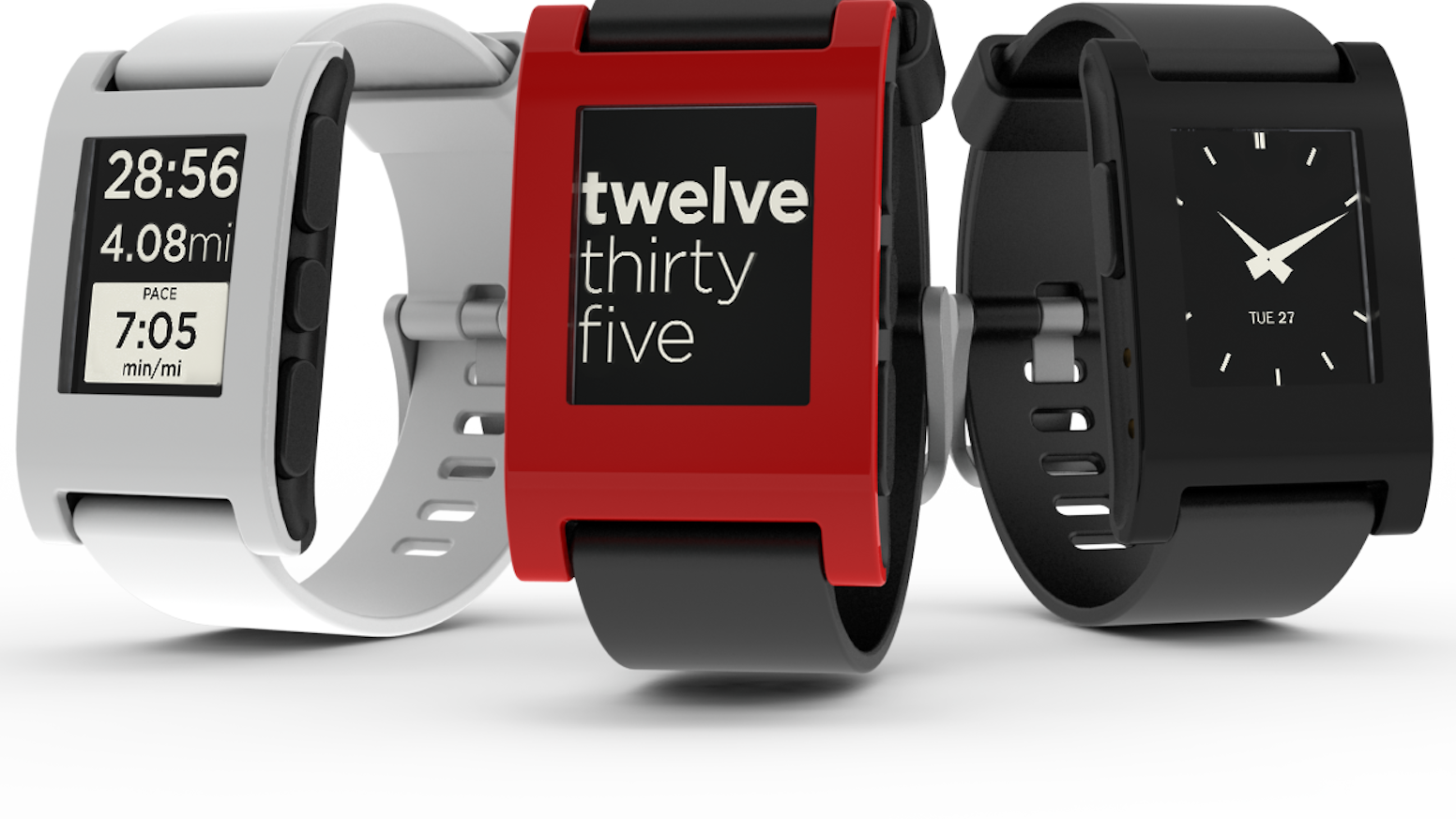
I have been a wearer of the original Pebble smartwatch for a number of years, but with their demise and my Pebble starting to fail I looked around at something similar to replace it. I ended up with a first gen Microsoft Band, but how does it compare and is it a good replacement?

The first gen Pebble was released via Kickstarter in 2013 and the Microsoft Band was released in 2014.

You can read my full review of the Microsoft Band first gen here.

The smartwatch world is full of touch screen all-singing all-dancing devices and in comparison the Pebble looked a poor option, but it came with some major advantages.

I loved the simplicity of the Pebble. It featured a mono e-Paper screen which was always on and readable in any light. Its lack of fancy screen meant battery life was amazing at between 7 to 10 days on a single charge.

The Pebble is really just a notification device. It shows system wide notifications and phone calls, but it did feature changeable watch faces and you could even install apps on it and a few games, controlled by the three physical buttons on the side.

The Pebble was well built and I found the rubber watch strap very comfortable - although I know a few people who found it irritating. A bonus was it uses standard strap pins so you could put any watch strap on you like.

It was also waterproof and I wore mine 24/7, even showering and swimming. It was great for controlling music on my phone whilst soaking in the tub.

But like all good things, mine began to fail. Pebble had a great replacement policy. If yours broke they would swap it for a new one. However, now Pebble are no more this isn’t an option any longer.

So I wanted a similar alternative and the first gen Microsoft Band looked good.

The Microsoft Band is both a similar and totally different device to the Pebble.

The Band falls in to the fitness band and smartwatch genre. It sports a colour touch screen around a rigid band strap laced with numerous sensors. The Pebble has a mono screen and no sensors.


The colour touchscreen offers more control on the device, but it does mean it is hard to read in direct sunlight. The higher quality screen impacts on battery life, meaning you get around 2 to 3 days between charges vs the 7 day plus out of the Pebble, but both the Pebble and the Band charge very quickly.

You cannot customise the watch face on a Band, but you can change the colour of the background and menu system.

The Band doesn’t allow you to install apps - other than tiles for further controls, but no games and only a few extra fitness based tiles.

Both devices are controlled via an app on your smartphone, but the Band can be used without but does come in to its own when paired with the app.

Both devices offer phone notifications - the main reason I wear such a device - and both vibrate, both performing equally as well at this.

The Pebble doesn’t have a microphone, but the Microsoft Band does - although for use with Cortana this requires a Windows Phone - I haven’t found any other use for the mic yet which renders it a bit pointless.

The Band has a lot of fitness controls due to its extra sensors, which the Pebble lacks - but if these aren’t for you then it is a pointless addition.

Both devices have their advantages and disadvantages. The Pebble is a basic device with incredible battery life. The Band is a more advanced device with reasonable battery life.

Is it a good alternative to the Pebble? For me it is. I like the notification options of both, but I am loving the colour touch screen and fitness features of the Band even though it reduced battery life.

For all you Pebble holdouts out there, the Band is a good alternative.

FitBit took over Pebble and have not produced anything that replicates the simplicity of the Pebble. The Microsoft Band first gen can be bought for a tiny amount. I paid £15 for mine and it was brand new and sealed and at that price it is a bargain.

I am loving my Band and all it brings, but I do miss my Pebble.

Written by Simon Royal. Follow me at twitter.com/simonroyal

Saturday, 28 October 2017

From Moto X Play to Moto Z Play

I decided this year to replace my Moto X Play with something better and after a couple of brief and disastrous attempts at getting a secondhand Nexus 6P, I decided to fall back to plan B, good old reliable Motorola, specifically a 32GB Moto Z Play. It was in budget, (slightly less money than the 6P) has a decent camera, good size battery and close to stock Android. I went for the Play over the Force or plain Z because the Z Play is the only one of the Z series to still have a headphone jack. I ordered a Grade B example from CEX using the voucher I got back from them for returning the last 6P. My budget could not quite stretch to a Z2 play but I have heard that is a bit of a step down from the Z Play in some ways, particularly battery life and price.


Unboxing

Well today I received the Z Play and I am amazed how great this device looks and feels. It certainly looks and feels better than the white Moto Z I handled in the shop a few weeks ago. The sides feel of reassuringly cold aluminium and the grippy textured back cover stops it slipping out of your hand. I will however be putting it in a case as soon as possible to protect that nice 5.5 inch 1080P Super AMOLED screen. The only scratches on the device are on the glass back, which is hidden by the back cover that is held on by magnets, covering up the pins used for Moto Mods. It does look much better with the cover on than with the back naked. The Power and Volume buttons take some getting used to as they are equidistant from each other and all the same size so I sometimes hit the wrong one when not looking, they do feel solid though. Despite being the budget model of the Z range, it still feels premium, more so than my X Play did.


It came with the original box, instructions and original charger. The only thing I would have liked in the box would have been a USB data cable, because the charger has a fixed cable. There is even a SIM tool in the box too. It was also already charged to 100%, which saved some time, and I installed a couple of security updates that were pending. It currently runs Nougat (7.1.1), with the 1st September security patch level, and Motorola promises it will get Oreo at some point.


Screen

Being AMOLED, the screen only powers lit pixels and has motion sensors so you can wave your hand over the screen to wake it up, unlike with the IPS screen of the X Play. The last time I had the feature was on my old 2014 Moto X a while ago. I really like having Moto Display (which replaces Ambient Display from the old Moto X days) and Raise To Wake for quickly checking notifications. And when I want to get something done quickly, the front fingerprint sensor beneath the screen is very fast to unlock and lock the phone. At 1080P on a 5.5 inch display it might not have a particularly high pixel density but it still looks decent for a budget flagship.


Software

As with every Android device I have had for a long while now,  I installed Nova Launcher Prime and have a simple setup of clock widget (this time Motorola's own Z widget) and Ampere widget on the Home screen, Google Now to the left and a second screen with Google Play Music and BBC Weather widgets. I like being as close to stock Android as possible so I have replaced the Motorola Contacts app with Google's own and installed a Pixel Nougat icon pack, mainly because the Motorola dialer icon is very ugly. This is how my Home screen looks now:


Cameras

After setting up the Z Play, I went into town and took some photos and videos, and I was impressed, it took photos just as quick as the 6P and even quicker than my old X Play. However I have found some shots had blurry edges with a sharp centre section, I think I may need to give it longer when using Auto HDR. Also having 4 less Megapixels than the X Play (and the others in the Z range) means not being able to enlarge them as much. The only slight puzzling thing is why Motorola have seemingly removed the shortcut where you double tap the power button to open the camera, but at least twisting your wrist can also quickly open the camera. The rear camera has phase detection and laser autofocus (which the X Play did not have), dual-LED (dual tone) flash, which the same as the Nexus 6P but with 16MP instead of 12.3MP. It’s also nice having 32GB of internal storage and SD card storage, particularly as it can take 4K videos. I used to bump up against the 16GB of internal storage on my X Play far too often due to having plenty of apps that refuse to use (slow and unreliable) SD storage. I still managed to get some decent photos despite it being such a dull overcast day.


I also took some videos too, to make sure everything worked and it seems to handle high volumes like a road drill better than my old X Play did. I also tried the 4K mode out too.


For the first time on one of my phones, there’s a flash for the front (or "selfie") camera, though I tend not to use flash if I can help it. It's still 5MP, the same as the X Play.


It also has a gyro and compass which the X play didn't which means I can finally take Photospheres again.

Battery

The battery life from the 3510mAh battery is amazing, I have managed over 5 hours screen-on time and over 17 hours of quite heavy usage! And over 6 hours screen-on time and 23 hours on light to medium usage. This is even better than I got with my Moto X. I've no idea what the Nexus 6P would have got given I did not find one with a decent battery. Of course I could add a battery Mod to this to get even more battery life, but I don't think I need to.


Conclusion

Overall I am very pleased with the Moto Z Play, it is a worthy successor to my old Moto X, and my only real criticism is photos are not quite as pin sharp as on the X Play, but it takes better videos at higher audio volumes. It also feels much more like a premium device. I am most impressed with the performance, nice AMOLED screen, close to stock Nougat and the absolutely amazing battery life. Hopefully it will last me a long while, and should be even better when it receives Oreo. Only time will tell.


Saturday, 4 February 2017

Motorola Moto G - 1st gen to 4th gen in 2017

Motorola returned to the smartphone world with a storm in 2013 after Google bought their mobile side in 2012. Launching three new lines they were instantly catapulted in to the Android limelight. 

The E range is budget, the G range is mid way and the X, and later joined by the Z, are the high end. The G range stood out as a happy medium with Motorola packing some serious punch into these compared to its competitors.

I have had the opportunity to use all four handsets in the G range. In fact all four have been in our house over the past few weeks, so I am comparing them and how they perform in 2017.

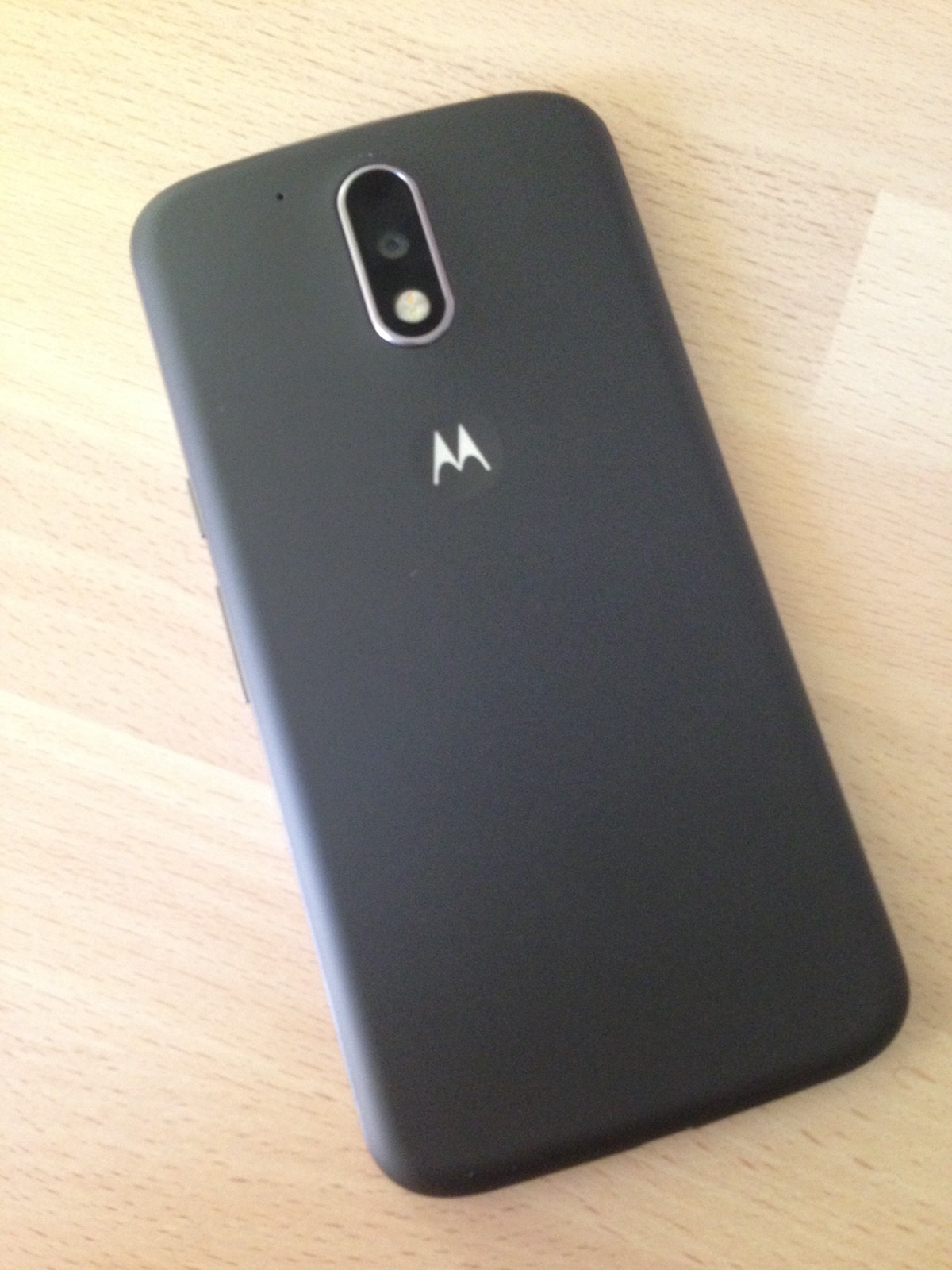
All Moto G handsets follow a similar minimal look. The back has the camera and flash and trademark dimple, the top has the headphone socket, the bottom the MicroUSB socket for charging and data transfer. The right side has the power/lock button as well as the volume rocker.

Moto G (XT1032)

The original Moto G - released in 2013 - is the smallest of all, featuring a 4.5” screen and no MicroSD card slot. A heavy but well built device. The lack of MicroSD card slot is a big turn off for me as the built in 8GB is too limiting without expandability - although also available in 16GB version.


It can handle social media and YouTube videos without issues and even gaming is possible due to its quad core processor and 1GB RAM - but space will be your main concern. It shipped with Android 4.3 Jelly Bean and received 5.0 Lollipop which it runs very well. As a four year old handset it still performs very well for its intended tasks - but lacks the new look OS, which had a major visual overhaul in Marshmallow.

Later on, variants were released that included 4G and MicroSD card slots - although I have never seen any of these.

Moto G2 (XT1068)

The second generation Moto G - released in 2014 - upped the stakes, growing to a 5” screen and adding an MicroSD card slot. It has a more plastic feel, which gives it a lighter feel without making it feel cheap. 


The bigger screen, drastically improved cameras and inclusion of a MicroSD card slot put it at a huge advantage over its predecessor - despite both having the same CPU and GPU. This model was well received by the media and offered serious value for money.

It still performs superbly today, running Android 6.0 Marshmallow (shipping with 4.4.4 KitKat) and easily keeps up with other newer handsets on the market. My daughter has this model and she uses it for light gaming, messaging and music with no issues. It really is a joy to use and doesn't feel like a three year old phone. The battery is easily as good as new phones and she can stretch hers for days. An interesting bonus too is that the G2 has stereo front speakers - producing superb sound for a phone (as far as I know, the only version of the G range to feature them). Later on, a variant, the XT1072, with 4G support was released.

Moto G3 (XT1541)

The third generation Moto G - released in 2015 - took the same design and tweaked it slightly. The back is the big give away featuring a textured back casing for easier grip. The cameras were upped once again offering a very capable 13mpx rear camera offering 1080p videos (over the 720p of previous G handsets) and dual LED flash, the front camera is taken to 5mpx. A slightly better CPU and GPU were introduced and it also added 4G/LTE in all models.


However the performance difference between the second generation and third generation is barely noticeable. My son has the third generation and he loves it. He plays a lot of games and never once complains about speed or delays, the only issue he has is the 8GB internal storage which can limit your apps even though Marshmallow introduced combined storage for internal and SD, it doesn’t work just as it should. There is was a 16GB model which had 2GB of RAM but I am not sure if it was released in the UK. (Editors note: the 16GB/2GB variant only seems to have been sold on Amazon UK, and I too have never seen one in the wild).

The battery size was increased by over 20%, which makes an already decent battery life even better and it features IPX7 water resistance which means it can be submerged in water - although I have never wanted to test it. 

One final addition over its older brother is the ability to wake the phone just by picking it up. Motion triggers the screen to wake, which is a handy feature.

Moto G4 (XT1622)

The fourth generation Moto G - released in 2016 - makes further leaps over the previous version, upping the screen even further to 5.5” (1080P instead of 720P in the previous generations) and cramming in impressive Octa Core processors, 2GB RAM but did keep the same camera specs as the G3. The device is splash-proof rather than water resistant like the G3 had been. 


My wife recently picked up a G4. The performance gain in the new specifications are fantastic. This handset flies and for something in the mid-range market and price range gives even top end handsets twice its price a run for their money.

I was a little dubious about the 5.5” display - especially as both my wife and I had phones with 4” screens - but the phone is large but not uncomfortable in the hand, and the huge display makes reading web sites and playing games great. The larger display is now 1080 - upped from the 720 of previous devices.

It packs in a whopping 3000mAh battery which sees my wife through nearly two days of average use. It ships with Android 6.0 Marshmallow - but is due for the 7.0 Nougat update shortly.

It is also the first Moto G handset to be produced under Lenovo, after acquiring the mobile side from Google.

Moto G5
Due for release in March 2017, the specs are not yet known for the Moto G5, however rumours are it will feature a 5.5" screen and Octa-Core 2Ghz and 3GB RAM.

Conclusion

The whole Moto G range has blown me away and my dismissive attitude towards Android handsets have changed considerably. All four released handsets offer so much power for so little money, it is hard to see why most people would need anything more expensive or powerful.

For the budget conscious the Moto G2 is a great bargain - however it lacks 4G. The Moto G3 is a little more expensive but does have better camera, slightly better processor and 4G.

The Moto G4 is still new and commands a much bigger price tag - but worth it. The original Moto is still good but its cameras are poor and lack of MicroSD card slot might cause space issues.

For me the G2 is the sweet spot between features and price.

Find below a comparison summary of the four models.

Moto G: Nov 2013, Quad Core 1.2Ghz, 1GB RAM, 4.5” screen, 8/16GB internal, 
no SD slot, 5mpx cam, 1.3mpx front cam, 2070mAh battery and Lollipop.

Moto G 2: Sept 2014, Quad Core 1.2Ghz, 1GB RAM, 5” screen, 8GB internal, 
SD slot, 8mpx cam, 2mpx front cam, 2070mAh battery and Marshmallow.

Moto G 3: July 2015, Quad Core 1.4Ghz, 1GB RAM, 5” screen, 8/16GB internal, 
SD slot, 13mpx cam, 5mpx front cam, 2470mAh battery and Marshmallow.

Moto G 4: May 2016, Octa Core 1.4/1.2Ghz, 2GB RAM, 5.5” screen, 16/32GB internal, 
SD slot, 13mpx cam, 5mpx front cam, 3000mAh battery and Nougat.

Written by Simon Royal. Follow me at twitter.com/simonroyal

Thursday, 2 February 2017

Kindle Fire 5th Generation Mini Review

Tablets are big business. A lot of peoples computing needs can be handled just by using one. While Apple and Google dominate the market, Amazon have a foot in the door too. Expanding on their Kindle book readers, Amazon have the Fire range - combining an e-reader and regular tablet.

My son got a Kindle Fire 5th generation as a present and I spent some time getting to know it. This model features a 1.2Ghz Quad Core processor with 1GB RAM, 8GB internal storage, card slot and a 7” screen. For a 2015 device the 1.9mpx fixed focus rear camera and 0.3mpx front camera perform very badly.

I did take some sample pictures to use on this article, but just couldn’t get them from the Fire to my Mac. Bluetooth wouldn’t work. Email needed setting up despite already doing this once. So I gave up.

It has a 7” screen that is surrounded by a rather large black border. This might seem an odd thing to write about, but it was something I noticed straight away. I wonder if it is to enable easy holding when using it as an e-reader.

It is a heavy device but seems well built. It has a minimalist look. The power/lock button, volume rocker, headphone port and MicroUSB charging port are all on the top. The MicroSD slot is the only thing on the right side.


This is an Amazon tablet. Their FireOS is a reskinned version running atop of Android 5.0 Lollipop. However this brings me to the main gripe with the Fire - it has no access to standard Android apps despite being Lollipop based, there is no Play Store. Instead it has its own Amazon Appstore. You sign in with an Amazon account not a Google account. This is not an Android tablet, which without prior knowledge a lot of people might not know this.

Once set up you are faced with a homescreen plastered with Amazon apps and book suggestions - giving a very cluttered look. This tablet can of course be used for surfing, email, FaceBook and Twitter to name a few things, but oddly lacking an Instagram app so be aware this might not cover all your needs. There are an impressive amount of apps and games, but it is just annoying that Android purchased apps will need buying again from the Amazon Appstore.

UPDATE: It is possible to sideload the Play Store and associated services, by downloading the APK files and allowing your Fire to accept 'apps from unknown sources' - full instructions on HowToGeek.com.

One other thing I don't like is your lock screen is used as an advertising medium - like a digital billboard which changes each time you lock it.


From a hardware point of view this is a very fast device. Apps and games load very fast and the whole OS is very fluid - helped by the Quad Core processor and 1GB RAM.

We have to touch on the e-reader side. You can download books directly on the device and reading them is great due to the crisp and bright screen which of course being touch means you can flick through pages too.

Battery is as good as any other tablet, but falls short of the amazing life of a dedicated e-reader. As a hybrid though, it does very well on both parts.

You may have gathered from this review that I am not too impressed with the Fire. As a tablet it is well built and runs fast with great battery life and is ok for surfing, FaceBook or Netflix, but the lack of Android compatibility puts it in the niche market and it is not clear when buying one what its limitations are.

For me a Android tablet with the Amazon app would be a better choice.

Written by Simon Royal. Follow me at twitter.com/simonroyal


Editors Notes:
I have set up a Kindle Fire before for a friend and found the restricted Amazon app store was quite inconvenient and found I had to side-load a few apps like Dropbox to make things easier, but it is a bit of a faff really. I would only really recommend a Fire for absolute basic tablet needs, a better choice would be a second gen Nexus 7 or a Nexus 9. In the last few years though, smaller 7 or 8 inch tablets have fallen out of favour since the advent of ~6 inch smartphones and the introduction of touchscreen Chromebooks with Android apps. 


Saturday, 28 January 2017

Motorola Moto G : 4th Generation Review

I’ve been an iPhone user for many years, but when my kids wanted decent smartphones we looked around and was pointed in the direction of Motorola - not a name synonymous with decent phones these days. However the last few years their Moto range has taken the Android world by storm.

I bought my son a Moto G third generation last year and it blew me away. My daughter then got a Moto G second generation and we were just as impressed.. These might be mid range handsets, but they offer serious power that can even rival high end handsets.

So when my wife wanted to switch from iPhone - there was only one manufacturer to look at, Motorola. She opted for the Moto G fourth generation.

Unboxing revealed an amazing looking handset. For a handset that can be bought for £150 brand new SIM free you get a lot of hardware. While the G3 wasn’t a massive leap over the G2, the G4 is a huge improvement over its predecessor. 

The G4 packs in a 5.5” screen, Octa-Core processor, 2GB RAM and 16GB built-in storage with an SD slot. Compare this to the G3 with it’s 5” screen, Quad-Core processor, 1GB RAM and 8GB built in storage and it is easy to see the improvements the G4 has.

Build
They might be plastic, but Motorola make good solid handsets. The G4 is no exception. It feels strong and sturdy. Its removable back does seem a little flimsy, peeling it off I had a brief worry it would break. The back has a rubbery feel which great for grip.


It is a large phone - especially when you are used to an iPhone 5 or SE with their 4” screen - but the handset fits neatly in the hand. It is thinner than previous models and despite its size feels like it weighs less, although officially both weigh 155g.

The back features the camera, flash and the Moto dimple. The bottom features the MicroUSB port for charging, and connecting to a computer, and the right side has the power/lock button which has a textured feel and also the volume rocker. The top has the headphone socket.

Screen
The 5.5” screen is superb. It is large and very bright and the 401ppi makes it very crisp. Colours look vibrant and viewing angles are great. One thing I have found on all Moto is the screen is very sensitive to touch, which takes a little getting used to.


Cameras
The G4 has the same 13MP camera and 5MP front camera as its predecessor although the front camera now features a ‘selfie flash’ mode similar to the Galaxy S7 and iPhone SE. It shows a white screen illuminating your face in low light.


Back camera: outdoor shots


Front camera: outdoor shot and indoor shot


Back camera: indoor shot

Call/Music
It is a phone primarily, so call quality is important. This handset has the clearest and loudest call quality I have ever experienced on a phone. I live in a poor signal area and still had no issues even indoors.

Music playback was also as good as you get on a phone. I’m not a fan of banging out choons on a tiny phone speaker - no matter what the manufacturer claims - but it performed decently and when hooked to a Bluetooth speaker it was superb. Listening over headphones also produced very loud sound - something I like from a phone.

Performance
This handset is no slouch. Everything is a dream to use on it. Surfing the web, Facebook, Twitter, listening to music, gaming and even navigating the OS, this Moto is amazingly fast.

It’s large screen makes viewing web sites, browsing social media, watching YouTube videos and looking at your camera roll a superb experience.

Battery
It packs in a 3000mAh non-removable battery. Out of the box it was almost fully charged and setting it up, performing the 6.0.1 update and installing her apps made no dent in the battery. The following day, she continued to play with it, made calls and listen to music connected to a bluetooth speaker and by 10pm it still had over 70% battery left. That is very impressive.

OS
As with other Moto handsets, Motorola offer a nearly vanilla Android experience with a few Motorola apps thrown in. It shipped with 6.0 Marshmallow and is due 7.0 Nougat in the near future. The Android world generally falls short of the massive four year of updates you get in the Apple world - however you are talking about a phone that is a quarter of the price.

Conclusion
I was already seriously impressed with the Moto G range - and this large, elegant G4 has seriously turned my head. I can’t fault it in any way.

My ageing iPhone is in need of updating and for the first time I am seriously swaying away from iPhone.

Written by Simon Royal. Follow me at twitter.com/simonroyal