Showing posts with label kde neon. Show all posts

Tuesday, 26 August 2025

Switching from KDE Neon to Kubuntu

 After many annoying little bugs and freeze-ups on KDE Neon User Edition, I decided to ditch KDE Neon for Kubuntu LTS. Neon is just too flakey to use as my main distro, it really is best to only use for testing the latest KDE features. I switched one of my other laptops, a Dell Vostro, over first before switching my 7300 first, just to make sure it worked OK, which it did. KDE on the LTS now has all the features I need and want on my laptops.


It was a painless install from a USB stick to my Dell Latitude 7300, and I have mainly just installed the essential apps I use such as Gimp, VLC, Filezilla etc plus kubuntu-restricted-extras, and this time I have installed Plank Reloaded to use as my dock at the base of the screen instead of customising a panel, and it seems to be working well so far, no show-stopping bugs yet. As usual the first thing I did was switch to Breeze Dark theme and also chose darker themes for login and lockscreen too.

There has also been a firmware update for my Latitude 7300 and that seems to have installed and stayed installed.  I haven't switched over my main desktop yet as that will require much more configuring and the weather has been too hot recently to switch it on! I've also been looking into getting a more powerful machine to replace it too. Not sure but i think Plank Reloaded was causing graphical issues so I removed it. Also occassionally still get some odd graphical glitches, not sure why it is still playing up, I shall have to keep investigating, but for now I shall keep Kubuntu on this Latitude and the Vostro.  

Wednesday, 7 May 2025

Upgrading From My Thinkpad T430s to a Dell Latitude 7300

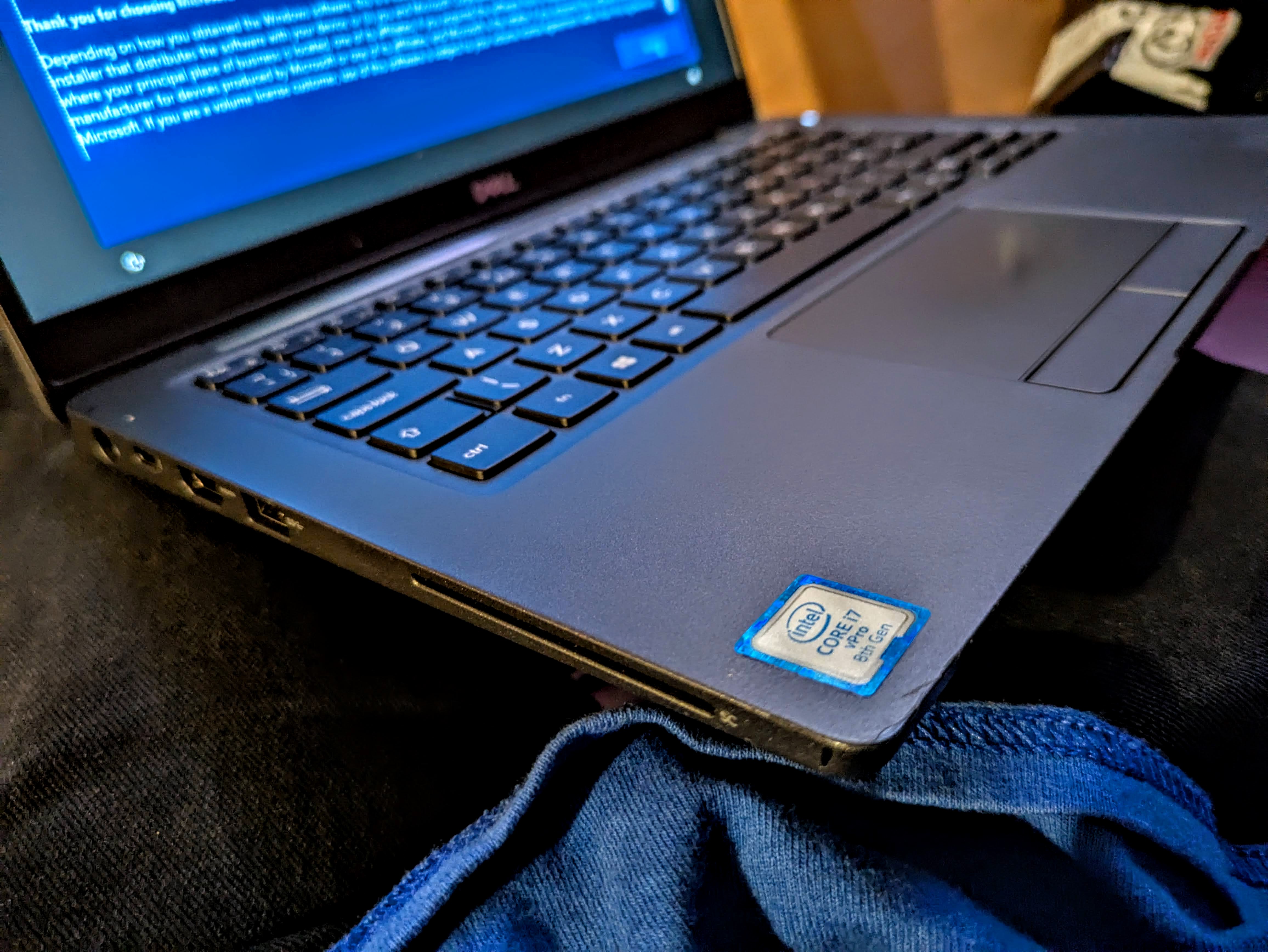
My Lenovo Thinkpad's battery and it's internal battery are both dead or close to dead and I think possibly the power supply connector maybe dodgy too, so I was in the mood for an upgrade. I found this Dell Latitude 7300 on eBay from a reputable seller. It has a 8th gen Core i7 CPU and 24GB of RAM (8GB+16GB modules) which is more than any other machine I have, including my main desktop which only has 12GB of RAM. Cosmetically the only noticeable wear I have noticed so far are the long rubber feet it sits on are hanging off a bit, just needs gluing back on at some point.   

I had a good look through the settings In the BIOS and only needed to enable SMART reporting for drives. I noticed lots of useful settings in there, you can disable the webcam, mic, change backlit keyboard settings, enable boot from SD card etc. That's the optional MicroSD card reader, which is nice, though for me a full size one would have been more useful, but I suppose they went for that to save space, which is also obviously why Ethernet is missing too. I may buy a USB C Ethernet and card reader adaptor for it at some point. With slightly less ports than I am used to it does mean that the 7300 is very light compared to my old Thinkpad. Obviously having no optical drive also saves a lot of space and weight, it's not something I use often other than on my desktop machines. There's a USB 3 port on each side, a HDMI port and USB C for charging, alongside the old barrel connector for the old style power supply. And apparently you cannot damage the machine by plugging in both at the same time. This one came with a fairly compact LITE-ON USB C power brick. There's the usual Kensington lock connector, and also a Smart Card reader which I doubt I will ever use. This is the first laptop I have ever had with USB C charging, which I like because my phones use it too, so it makes things easier. 


The 7300 came with Windows 10 on it's 128GB NVMe SSD but there was no way I was keeping that garbage on this. I thought about upgrading the storage but just wanted to get Linux on it as quick as possible, I think 128GB should be fine anyway. 

I wiped out everything and installed KDE Neon. Everything went smoothly but I advise not leaving it long enough during the live session for the screenlock to kick in, because for some silly reason it requires a password, yet the Neon live user does not have a password set. If this happens, wait long enough for the install to have finished, then shut it down, or CTRL+ALT+F2 to a terminal and reboot it form there, that's the simplest solution. 


Anyway, the install didn't take long and upon reboot I had a nice crisp fresh KDE Neon install. And KDE really does look crisp on the 1080P LED screen, it's pin sharp, and feels much sharper than the one on my old Thinkpad, and has much better colours, the black actually look black! I switched the global theme to Breeze Dark as I find dark themes are easier on my eyes. And lastly I put the main panel at the top and a dock-like panel at the bottom of the screen.

I installed yakuake terminal VLC, Audacious, kubuntu-restricted-extras, gimp, wxMp3gain, krdc (remote desktop client) soundkonverter, synaptic (alternate package manager). KDE reports the battery health as at 69%. I have also installed lm-sensors as per usual and all temperatures are just fine under light usage though I did get a bit worried at one point while Dropbox was downloading loads of files and with a few tabs in Chrome, temperature on one core went up to just over 70, though that's still in acceptable figures according to Dell's site, and it hasn't happened again. It usually hovers around the 30 to 40 C area. I have also  changed the updates in Neon to the non-bundled variety, as it should be.  To disable offline updates, edit the config file /etc/xdg/discoverrc - for example using nano - and set it to off. Another tweak I do is add the 'Show Logout' and 'lock screen' options to the desktop right click menu.


Everything works out the box as with most Latitudes I have had, the keyboard and trackpad are decent, much better than on my old Thinkpad and is in good condition too. The backlight works fine, it's something I feel I cannot live without on a laptop or desktop these days. If you need to change the Fn key behaviour, pressing Fn + Esc toggles the Fn lock, allowing you to use the F keys without the Fn key.


For many minutes I thought there was something wrong with the webcam, but after a bit of googling I discovered that there's a simple little slider switch next to the webcam to enable and disable it. Although there are some KDE specific webcam tools, I find the app called Cheese is the best standalone Linux webcam app, it's very simple to use. It's not great quality compared with a smartphone camera of course, and not something I will use much, but it's nice to know it works. 

One slight annoyance is Discover keeps nagging me about a UEFI dbx update, and every time it supposedly updates, it still comes back again on reboot. I have tried updating on the commandline but I get an error, and I've searched online and not found a solution yet. 


On one cold boot it even did a firmware update but that has not made a difference. 


Update 30/06/2025 - A recent update to Neon has now fixed that UEFI dbx update issue.

Another bit of strange behaviour I had was when I closed the lid, it did not suspend/sleep, and continued to run as if the lid was never closed, which, if left for awhile, made the fans go full blast trying to keep it cool. After a bit of Googling I discovered that the previous owner had disabled the Lid Switch in the BIOS. 


Also one time when I manually Suspend I came back to find it had shutdown at some point, despite having plenty of battery left. I had just done some updates on KDE Neon so that could have caused that issue. When it does suspend and resume, it does so very quickly.


Overall I am very pleased with the Latitude 7300, it has a very nice bright screen, nice backlit keyboard, decent touchpad, and it's the first laptop that I have had that is significantly faster than my main desktop, in every way except possibly in graphics card power. It has twice the RAM and a much newer processor. The only thing of course is I do prefer the dual monitors on my desktop, though I could attach a monitor through HDMI.  I've mostly been using it for all the usual stuff I would do on my desktop, web browsing, image editing in GIMP, and bit of video editing in Kdenlive.  It's been particularly useful n the very hot weather when I don't want to run my main desktop machine. Hopefully it should last me awhile, and it runs so quickly I feel like I need to get a new workstation to match it! 


Monday, 10 June 2024

How To Install Mkchromecast on Ubuntu and Ubuntu based Distros

Mkchromecast is a way to stream any sound from your desktop to your Chromecasts, which to me makes it a lot more useful than the Android app for streaming, particularly for streaming offline music to the no longer made Chromecast Audios. Just like Google Home, you can stream to just one or to a Home Group. As per my previous article, I was using Mkchromecast on Manjaro until recent updates killed it, so I switched that particular laptop to KDE Neon, which is my favourite distro. Anyway, here's how to install Mkchromecast: 


Firstly, install git, and then download Mkchromecast from git: 

    sudo apt install git

    git clone https://github.com/muammar/mkchromecast.git 


Then, switch to the mkchromecast directory and install the dependencies:

    cd mkchromecast

    pip install -r requirements.txt


Then install Mkchromecast

You can install from Discover or with apt (sudo apt install mkchromecast) and now it should work fine. I usually use mkchromecast -s to scan for devices and choose my Home group to stream all simultaneously. It's a shame Google discontinued the Chromecast Audio because it works pretty well, and is much cheaper than expensive streaming solutions like Sonus.


Tuesday, 21 May 2024

From Manjaro to KDE Neon on My Dell Vostro 3300

So there was a huge update on Manjaro recently to KDE plasma 6 and it killed Mkchromecast again on my Dell Vostro, but this time I wasn't able to get it working again. However I worked out how to get it working in 'buntu based distros, so I decided to switch it to my preferred 'buntu-based distro, KDE Neon. Neon is based on the Kubuntu LTS but with the latest KDE installed. The installer was even easier and smoother than it used to be, so after backing up stuff I wanted to keep, I installed Neon in about 5 or so minutes. This machine has an old hard drive but it still feels fairly snappy to use. 


One of the first things I like to do with KDE now is turn off the stupid Offline updates setting. Seriously KDE devs, this isn't Windows, I don't want or need to have updates run on shutdown! Linux doesn't need to reboot for most updates! I also switched to Breeze Dark theme, and moved the panel to the top, disabling the new floating panel setting. That's what I like about KDE, everything is configurable, unlike Gnome where they have a like it or lump methodology. And the search feature in Settings works very well. Also I discovered that my Dell Vostro has a back-lit keyboard, I accidentally hit the Fn keyboard shortcut to turn it on! 


I also installed all the usual items such as GIMP, Audacious music player, Filezilla, Cantata (mpd front-end) Yakuake (a drop down terminal) and Kubuntu-restricted-extras. In general this fresh install has gone very smoothly compared to an upgrade, though I did have a slight issue with menus not popping up from the system tray, Switching from Wayland to X11 at the login screen sorted that out. Another little tweak I do is re-enabling the Leave option in the desktop right-click menu. So, other than that slight issue, this fresh install has gone very smoothly, and I'll likely keep KDE Neon on this laptop until the hardware dies whenever that might be, this Vostro is a tough old thing.


Wednesday, 6 March 2024

Upgrading to KDE Plasma 6.0 - a rocky start for KDE Neon User Edition

When I read about the first stable release of KDE Plasma 6, I thought I'd probably just wait awhile until I try it, but of course I forgot that KDE Neon User Edition would get it so soon.  Well, the update happened and the first thing I noticed, on my main desktop machine, was that for some reason the onscreen keyboard came up on the login screen, large and covering half the screen! To fix this I found a solution on a forum, which entails editing sddm.conf like so:

sudo nano /etc/sddm.conf

and then add 

InputMethod=

Save and exit and the onscreen keyboard shouldn't appear again on the login screen. Also it's a rather basic login screen for some reason, no matter which theme I choose. Update - switching to the default Breeze login theme fixes this.

Then I noticed that Wayland was set as default again, after I tried to login and it wouldn't work. Nvidia is the reason for this, but thankfully X11 is still an option and that works. Then on the first few logins I noticed a lot of little errors I think some parts hadn't updated, so a quick trip to Discover, the package manager to make sure everything got updated was needed. And then a day or so after i updated, there was some major bug fixes, which has made things better but i am still getting the odd Plasma crash, usually after logging in and opening Chrome for the first time. Right now the desktop seems to have has settled down and actually feels a bit snappier than Plasma 5 was. I am still getting the occasional error and a few graphical glitches, black screens occasionally., 

KDE Activity manager constantly crashed with the "kactivitymanager closed unexpectedly" error.until I found a solution,  Navigate to ~/.local/share/kactivitymanagerd/resources and delete database, database-shm and database-wal. You will lose your favourites in the KDE menu but at least the annoying kactivitymanager won't keep crashing! Amother odd thing is that the Print Screen key does not open Spectacle anymore.   

Another minor issue is that since Plasma 6 is qt6 based, so Latte Dock no longer works, and will never be updated since it's been abandoned by the lead developer. A shame because it's been my favourite OSX-style dock for years. For now I have added another KDE panel, auto-hiding, and using the new floating panel feature. It's not exactly pretty, but it's functional. I shall miss the magnification effect from Latte, and I can't seem to get the panel to go translucent, even though I have set it to. Floating panels are default now, but to me they look odd on the normal panels so I have disabled them for those. Another minor niggle is that Dolphin always opens without the sidebar even though I closed it with it open. It used to remember my choice. 

On my main laptop, a T430s Thinkpad, the update installed more smoothly, there was no kactivitymanager errors but still have the same basic login screen and had to disable the onscreen keyboard like with my desktop machine. No graphical issues of course, because it's got Intel graphics. One thing I have noticed changed is that when I close the lid then open it again, the keyboard backlight now goes off instead of remembering which setting it was on. My laptop does not have the Dolphin sidebar issue though.

The KDE Neon developer blog has put up an apology for the number of issues with KDE Neon User Edition. Apparently the testing and unstable versions have been running more smoothly. Hopefully they'll send out more fixes soon.

You can read more about what's new in KDE Plasma 6 on the KDE website. 

Sunday, 17 September 2023

Installing a full Linux distro on my Acer Chromebook 14 CB-431

 So I was having trouble with my Chromebook. When editing photos with Google Photos it would slow down then freeze. After testing in another user account with no extensions or add-ons, it still had the same issue. I then went last resort and powerwashed it. This is simple and quick way of wiping back to factory settings....and then I decided to install a full Linux distro on it.... 


My Acer Chromebook 14 has been End of life for awhile now, (it was released in 2016) which means no more fixes for issues, and no new features. I'd already removed the hardware write protection screw inside the base in preparation for possibly putting Linux on it awhile ago, I had just put off doing it until now. Luckily there's very useful guides on the Arch Linux Wiki on how to put Linux on a Chromebook. I used the guide for my specific model, here.  It is a CB3-431, 4GB RAM, 1080P screen version (Acer also did a 2GB, 720p screen version). 


There's a couple of different options on the Arch Wiki, and I chose the Coreboot route. Linux only, no dual boot. After installing the custom bootloader, I went ahead with installing Linux as normal, wiping all the internal 32GB storage. I used my favourite distro, KDE Neon, which is basically Kubuntu LTS but with the latest version of KDE. I wrote the ISO to a USB stick using OpenSuse Image Writer, which worked perfectly, it's the first time I've ever used it. 


After a normal uneventful install, KDE Neon used just under half of the Acer's 32GB internal storage. It still boots pretty quickly. The main thing I noticed after logging in for the first time, was the display was on full brightness and of course in ChromeOS the Brightness keys are on what would be the normal F keys in Linux. You can use change shortcuts in KDE settings, and create custom ones. For Brightness Up and Down I used Ctrl + F6 and F7. For for the Volume keys I used Ctrl + Shift + F8 and F9  (which were the Volume keys in ChromeOS). The Fullscreen key is F4 so I added Ctrl and Shift for that too. There's a smaller number of F keys to standard so I had to choose another shortcut key for my favourite drop-down terminal emulator, Yakuake. As expected, the Google/Search key becomes the Super Key aka The "Windows key".  


Some of the fixes on the Arch wiki were not needed, such as those for the sound and touchpad. The trackpad seems to work fine, though right clicking only works with the default setting, clicking on the bottom right corner of the trackpad, instead of the two finger clicks that I am used to. Just a case of getting used to that, along with the new keyboard shortcuts. 

The sound works out the box and one advantage of running Linux on this Chromebook is you can increase the Volume beyond 100%, which you cannot do on ChromeOS, as the audio was far too quiet, in headphones or from the speakers on this machine. I used to have to use a Chrome extension called Volume Master to boost the volume on ChromeOS, but its downside was that YouTube couldn't run fullscreen while it was in use. Although having said that, sometimes after boosting the audio for some time, it sometimes goes to just playing a tone.  Another option I can now use is a USB audio interface, like my M-Audio M-Track Solo, which is something else I couldn't use with ChromeOS. 

After all the main tinkering, it was just a case of installing all my usual favourite apps, such as VLC, Audacious, Cantata, FIlezilla etc. And finally, bringing back the Leave option in the Desktop right click menu and removing the silly offline updates feature.  Performance is fairly snappy on first impression, considering it only has 4GB RAM. Lm-sensors reports the normal temperatures as 45 Deg C at idle, rising to just under 50 under heavier loads. Suspend and Resume work fine and battery life doesn't seem to be impacted. It does struggle with 1080P YouTube in Chrome, but it plays a little bit smoother in Firefox. I'm not using Latte Dock as I would usually, because that uses more resources than it should. KDE isn't as heavy as it used to be but I might have to install a distro with a lighter or minimal desktop environment.

 I've been impressed with the full 1080P screen on the Acer ever since I first got it, and KDE looks fantastic on it. I have always preferred to edit photos in Google Photos on the Chromebook instead of on the dull screen on my Thinkpad T430s, the colours are more accurate.  


So far, I am pleased with full Linux on my Acer 14, and I am not missing running ChromeOS yet. It can't run Android apps the same way as ChromeOS did, but that's something I rarely did. They often felt a bit awkward on the desktop. It boots pretty fast, getting to the logon screen not much slower than ChromeOS did. I only wish it had a backlit keyboard, but then at the price it was originally that was to be expected. Installing Linux has basically extended the life of this Chromebook and I'll keep using Linux on it until the device dies, which will probably be whenever the 32GB eMMC onboard storage is dies. It is soldered to the main board so it's not really upgradeable/replaceable. Until then, this Acer will get plenty of use, probably mostly YouTube and Google Photos when I am away from my main desktop. I just have to decide whether to stick with KDE Neon or switch to a lighter weight distro.  

Monday, 8 August 2022

How To Bring Back The "Leave" Option in the KDE Desktop Right Click Menu

 About a month or so ago, a KDE update removed the "Leave" option in the right click menu on the desktop for what I see as no sensible reason. It does not exactly take up much space! I have years of muscle memory of using it and it took me a little time Googling with the right search terms to find a solution, so I thought I would make a little post so more people know how to get it back. 


Right click the desktop... 


Choose "Configure Desktop and Wallpaper Settings"....

Select Mouse Options and click the configure button, 


...then click the Leave checkbox and you're done! I suppose it's simple when you know how, but still, it's just baffling as to why it was removed, anyway thanks to Steve Bolduc's Reddit post for the video of the solution, but some people, including myself, find it easier to follow written instructions with images.


Thursday, 28 July 2022

Old But Gold: Lenovo Thinkpad T430s

I was getting tired of using the battered old Dell Latitude E6500 as my main laptop, and my Thinkpad X201 needs the fan replacing, so that's out of action, so I needed another laptop to use. Thankfully I managed to pick up a very tidy Lenovo Thinkpad T430s for a good price. It's in excellent condition for its age. It has a nice bright screen with no marks on it, an apparently not very old battery, and a replacement power supply, though I do have a Lenovo one that fits from my oldest dead Thinkpad. It has a very durable magnesium alloy and carbon-reinforced plastic construction. The screen bezels might be considered chunky but it helps with the durability. The T430 has a quad core i5-3320M CPU, 8GB RAM, and Intel HD 4000 graphics, 2 USB3 ports, one USB2 port, SD card reader, Mini Displayport, Gigabit Ethernet, a DVD-RW drive and came with a 500GB hard drive with Windows 10 installed, but that was the first thing to be ditched. 


Getting the Thinkpad up and running with Linux was as simple as swapping out the 500GB hard drive for the SSD from my old Thinkpad X201. It's just a case of removing the X201's little caddy and rubber mounts and putting the rubber mounts of the T430s on. The DVD drive can be replaced with an Ultrabay battery or second SSD/hard drive.


Once installed, the outer panel screwed back on, KDE Neon booted up and was ready to use. I then installed all the updates it had missed while being offline. 


The T430 has a nice bright screen and a great keyboard to type on with its island keys. It's also the first laptop I have had with a back-lit keyboard (Fn key + Space to turn it on and off). The textured touchpad takes a little getting used to, though I do tend to prefer a mouse on older laptops. It supports multi-touch gestures like pinch to zoom, in Linux you press Control while pinching. The keyboard layout is a little different to my older Thinkpads, and my Dell Latitude, with a smaller rectangular Return key, which also takes a bit of getting used to. Of course being a Thinkpad has the Track Point, or Nipple Mouse as I like to call it, but I always disable it, I have never got the hang of using them.

Thinkpads are well known for being Linux-friendly (though I am not sure about the latest ones), so it's no surprise that everything works out the box - shortcut keys, graphics etc. The keyboard layout was not set right on the first boot, likely because I had swapped the drive from another machine, but it's easy to change that in KDE settings, to generic US layout. Even the grainy built-in 720P 1.3MP webcam works out the box, I installed kamoso to test it out, which is in the 'buntu repos. Bluetooth also works perfectly out of the box with KDE.

I got just a little over 2 hours battery life with heavy usage - Facebook, lots of YouTube video playing - with the screen at 50% brightness. That's not bad for an old battery, though when new it would have lasted around 5 hours. The only slight oddity is sometimes when the battery is really low, and you plug the charger in, KDE sometimes reports that it is not charging, when it actually is, eventually after a moment or two it shows as charging. The optical bay can be replaced with an Ultrabay battery that apparently adds around 3 hours of usage.

If you find that under heavy usage the temperature go up to 75°C, it may help to place the T430 on a flat hard surface, rather than directly on top of your lap, I find it goes back to around 40 to 50°C depending on usage. It may also be worth cleaning out the fan too. It's got a bit warm a few times with YouTube, not helped by the hot weather at the moment. I already had Thinkfan installed to control fan speeds, and the config is very similar to the X201, there's a how to here to set it up. 

Another slightly annoying thing I have discovered is that there's an admin BIOS password on this T430s, which is always a hazard when buying secondhand laptops, you can get in without entering a password but you won't be able to change certain settings. Without the admin password you cannot change anything in the "Security" section of the BIOS apart from you can add a hard disk password. and you cannot change anything in the "Startup" section apart from Boot Mode (Quick or Diagnostics). If you need to choose a boot device though you can press F12 when starting up and choose what you want. The one thing I want to change at some point is enabling hardware virtualisation (Intel VT). There are a few workarounds as detailed here, but you should be very careful to follow them correctly for fear of bricking the laptop. Right now I really cannot be bothered to go through all that hassle until I absolutely have to.   


Apart from the odd minor niggle, I am pretty happy with this old Thinkpad. It's amazing how compact and fairly lightweight the T430s is (compared to a beast like my Latitude E6500), but still has a decent number of ports and room for a DVD bay too. And I prefer the size of the 14 inch screen on this to the 12.1 inch of the X201, that's a bit too small for my liking. 14 inch is the sweet spot for me. I love how snappy this laptop feels with KDE Neon, compared with my old Latitude E6500 and even my Chromebook. It's very quick to boot and I like how when it dims the screen after I have left it for a bit, it also turns the keyboard back-light off until I start using it again. The trackpad beneath the spill-resistant keyboard could be a bit better, but it's often that way on older laptops, I've been spoilt by the excellent trackpad on my Acer Chromebook 14. The T430s keyboard is superb to type on though. The T430s is a pretty sturdy laptop, and pretty quick considering it was released back in June 2012, 10 years ago at the time of writing, and I hope it will last me a few more years without going wrong, but only time will tell. 


Tuesday, 13 April 2021

How to get rid of "System Upgrade" in Discover in KDE Neon

KDE Neon has been my distro of choice for awhile now with no real issues but just recently I noticed that when I open Discover package manager on KDE Neon, there is now sometimes a "System Upgrade" along with other updates. And installing the "System upgrade" results in those updates being applied on shutdown and bootup, instead of straight away, thus increasing the boot and shutdown times, which I find rather annoying. It's too much like the Windows update method, which is the most irritating thing about Windows! 


Luckily, being Linux there's a way to disable it using your favourite text editor. To disable offline updates, edit the config file /etc/xdg/discoverrc - for example using nano -

sudo nano /etc/xdg/discoverrc

Then change UseOfflineUpdates to false like so:


And then save the file and exit, which in nano is - 

Ctrl+O  and Ctrl X

Now when opening Discover, I can see exactly what these updates are and I shall reboot when I am good and ready! 


I can kind of  see some merit in trying to avoid installing some updates while the system is in use but I'd much rather just reboot or even just logout and login to KDE since sometimes that's all that's needed. i also don;t like the way it hides what those updates are, I like to see exactly what is being installed each time without resorting to using apt all the time. Making updates act like they do in Windows is a step too far! 


Friday, 15 January 2021

MacOS Catalina running in QEMU on Linux

This is macOS Catalina running in QEMU on top of KDE Neon Linux. I used an easy to follow how-to at Computing For Geeks that uses the macOS-Simple-KVM project on Github. 


By default, the script sets the display resolution at a single resolution, currently 1280x720, and I haven't yet to tinker with it, It is also possible to enable PCI Express pass-through for GPUs but I am not sure how well that will work either since I am using Nvidia GT710 graphics on this machine. It's my main desktop, a HP Z400 workstation with 12GB RAM and Intel W3520 Xeon CPU, the only machine I have capable of running the macOS VM. 

MacOS seems to think it's a Late 2009 iMac 27" Core 2 Duo, since two cores are allocated to it by default. RAM and cores allocated can be changed by editing the script. I have increased the amount of RAM to 3GB. I seem to have an issue with Step 4 of the guide, adding the VM to Virt-Manager. It won't let me add the right disk image in storage so I have to start the VM from ~/macOS-Simple-KVM$ ./basic.sh every time. And Bridged Networking is a bit fiddly, so right now it can connect to the net, but not my local network. I have not thought of a particular use for this VM yet, but I am sure it might come in handy if I need a macOS-only app at some point.   


Thursday, 19 November 2020

Revitalising a Dell Latitude E6500 with an SSD

I have been playing about with a Lenovo ThinkPad W500 I was given awhile back, but I'm tired of it suddenly deciding to use the dead ATI graphics card every now and then. It's a real faff to get it going again and I really wanted a reliable Linux laptop to hand. I was going to put an SSD in it, but decided my Dell Latitude E6500 would be a better place for it, it's much more reliable, and I actually prefer the keyboard on the Dell. I have had it for a long time, but it has been set aside as a spare laptop for ages since I tend to use my Acer Chromebook 14 for general browsing the net while sat on the sofa. Sometimes there's one or two things that are not easily done on a Chromebook, so it will come in handy to have the Dell to hand. It has a P8600 (2.4Ghz) Core 2 Duo CPU, 4GB DDR2 RAM, Intel GM45 graphics and came with a 120GB hard drive.

I received a Kingston SSDNow A400 240GB SATA 3 Solid State Drive for my birthday and decided to put that in the Dell to pep it up a bit, particularly to make it boot faster. It's also actually twice the size of the Seagate Momentus 5400RPM hard drive that was in it, which I think was probably the drive it came with from new. I would like to up the RAM to the maximum 8GB but it would cost £30 for 2x 4GB sticks of DDR2. It's a shame it's DDR2 as if it was DDR3 I could've taken the RAM from the Thinkpad, and a DVD writer would be nice in it to replace the combi drive...but I digress...


On the first try, the rear set of mounting screws would not go in, but the drive fitted in. However on boot, it was not detected by the Latitude. So I popped it out and put it back in without the front cover and it went right in. The rear screws went in fine but the front ones did not... 

After some Googling and head scratching, I discovered that since the SSD is thinner, you need put a shim under the drive to make the connectors and screw holes meet inside. I cut and folded some of the thick card from the packaging and used that. The drive now fit snugly and the outer cover is on. Sorted!

I used to run Kubuntu on the Latitude but these days I prefer KDE Neon, as it has a much newer version of KDE, which is much more usable. After a quick fresh install on the SSD, I rebooted and found the boot time is much quicker than before and the desktop is very snappy. It boots in around 15 seconds and shuts down in 4 seconds. Boot time with its original old hard drive was a lot longer! 

All i needed to do then was install all my favourite apps and tweak the desktop to my liking. Desktop apps like Chrome start quicker too. It's a night and day difference in performance! I am really glad I upgraded the Latitude to an SSD and I'd like to upgrade some of my other laptops too. The old hard drive will go on the spares pile. Adding an SSD really is a great way to bring these old laptops a new lease of life. Next in line for the SSD treatment might be my old white Macbook...


Further reading:

01/07/2020 - Resurrecting My Lenovo ThinkPad W500


Wednesday, 1 July 2020

Resurrecting My Lenovo ThinkPad W500

Just the other day, Google Photos reminded me that I have a ThinkPad that a friend of mine gave to me. At the time, it was lacking its original SSD so I put in an old HDD, installed KDE Neon, played with it a bit then put it to one side. So having been reminded of it, I thought I'd dig it out and have another play.


It's a ThinkPad W500, has a P9500 2.53Ghz Core 2 Duo CPU with 8GB of RAM and I put an 80GB hard drive in it. It has one hardware issue. It has Intel onboard graphics and a discrete ATI card, which seems to be dead. For some reason, after being sat for a few years, it then tried to use that as the default, but on boot, a black screen is all you get.


It's a known issue with these ThinkPads and to fix it, unplug from the mains, remove the battery, undo some screws underneath to get access to the top. Then disconnect the BIOS battery and leave for 20 minutes, and then reverse the process. Plug in, then press F1 at the boot logo to enter the BIOS. Go to Config > Display then set the primary video device to Internal.


I then updated KDE Neon and everything is working nicely. After logging in, KDE only uses about a Gig of RAM which is good for a full fat desktop system.


KDE Neon (User Edition) is my distro of choice these days, I have had it installed on my main desktop for a few years. It is based on K/Ubuntu LTS releases but with the latest KDE installed. 


I really like the amount of ports it has, quick release DVD drive, onboard Ethernet, PCMCIA, etc and the classic Thinkpad keyboard. 


That classic Thinkpad keyboard:


Easily removable DVD combo drive:


I am not sure how often I will use it, as my main laptop is a lightweight Chromebook, but it's nice to have a full Linux laptop handy occasionally. I do also have a Dell Latitude E6500 that's in better shape but my next job will be updating my old Sony VAIO to the latest Mint Linux.