Showing posts with label xubuntu. Show all posts

Wednesday, 6 January 2016

Peppermint Linux on a Samsung N145 Netbook

I have not really used Samsung N145 netbook in ages since I got my HP Chromebook 14 but I was playing around with Cloudready and couldn't get it to install. Since I had already wiped Xubuntu I decided to try something else. A friend of mine reminded me that Peppermint Linux is still around, and I had not tried that in ages either, so I thought I would give it a go. Peppermint is a heavily customised version of Ubuntu/Mint Linux and LXDE desktop with a smart dark default theme and nemo file manager. Install is in the same sort of way as most Ubuntu-based installers and I had it installed without a hitch. On using it installed for the first time it does feel quicker than Xubuntu and now the screen brightness keyboard shortcuts actually work!


Peppermint default desktop showing the screen brightness shortcuts working!

Peppermint comes with a minimal set of locally installed apps - just the basics - Chromium browser (with DuckDuckGo search as per Mint), VLC media player and nemo for file management. It has the same update system as Mint. Peppermint also have added some web app tech to "... put web applications on an equal footing with locally installed apps by allowing them easy integration into system menus, and delivery to the desktop via SSB's so they mimic locally installed applications." I have installed Chrome, Firefox, Gmusicbrowser, Guake and Filezilla so far and moved the main panel to the top where I prefer it. It feels lighter than Xubuntu and much more polished than LXLE, I'd definitely recommend this distro as a possible Windows replacement for old netbooks like this one and for other low end PCs.


Thursday, 19 February 2015

Revitalizing a Sony VAIO VGN-N31S/W - Part 3

Just a quick update on my rescued Sony VAIO (see part 1 here and part 2 here) that I bought awhile back for just £2. I had been switching desktops quite a bit, trying them out, and that meant a lot of cruft and debris in the Home folder, so I decided to install a fresh version of Linux.  


It started out it's life with Windows Vista, and I installed Xubuntu 14.04. This time I decided to go with Mint 17 KDE edition since 3GB RAM would be enough to handle it fine and I prefer Mint's out-the-box experience. Most vital codecs and a decent set of apps are already installed. Mint KDE has been my choice of desktop on my main HP xw6600 workstation for some time now too. The VAIO seems to handle Mint KDE just fine so far, though I don't often use this laptop (my Chromebook is my main laptop) it's good to have this around as a backup or when I need something with more storage on the move, even if it does weigh a ton!  


Sunday, 9 November 2014

HP Chromebook 14 Review


HP Chromebook 14 (2013)

When I was deciding on getting a Chromebook, I made the decision to go for the outgoing version of HP's Chromebook 14, as I needed a large 14 inch screen, Intel Haswell CPU and 4GB RAM. I don't like tiny 11 inch screens, and the larger screen also means a decent size keyboard. Although this makes the HP heavier than some Chromebooks, it is still around half the weight of my chunky old 6.6lb Sony VAIO! I could have waited and got the newer replacement model 14, with better screen, but that only has 2GB RAM, and an ARM CPU, which is annoying. I need plenty of RAM as I tend to have a lot of tabs open and planned to run Xubuntu using Crouton, which in theory works better with the Intel CPU.
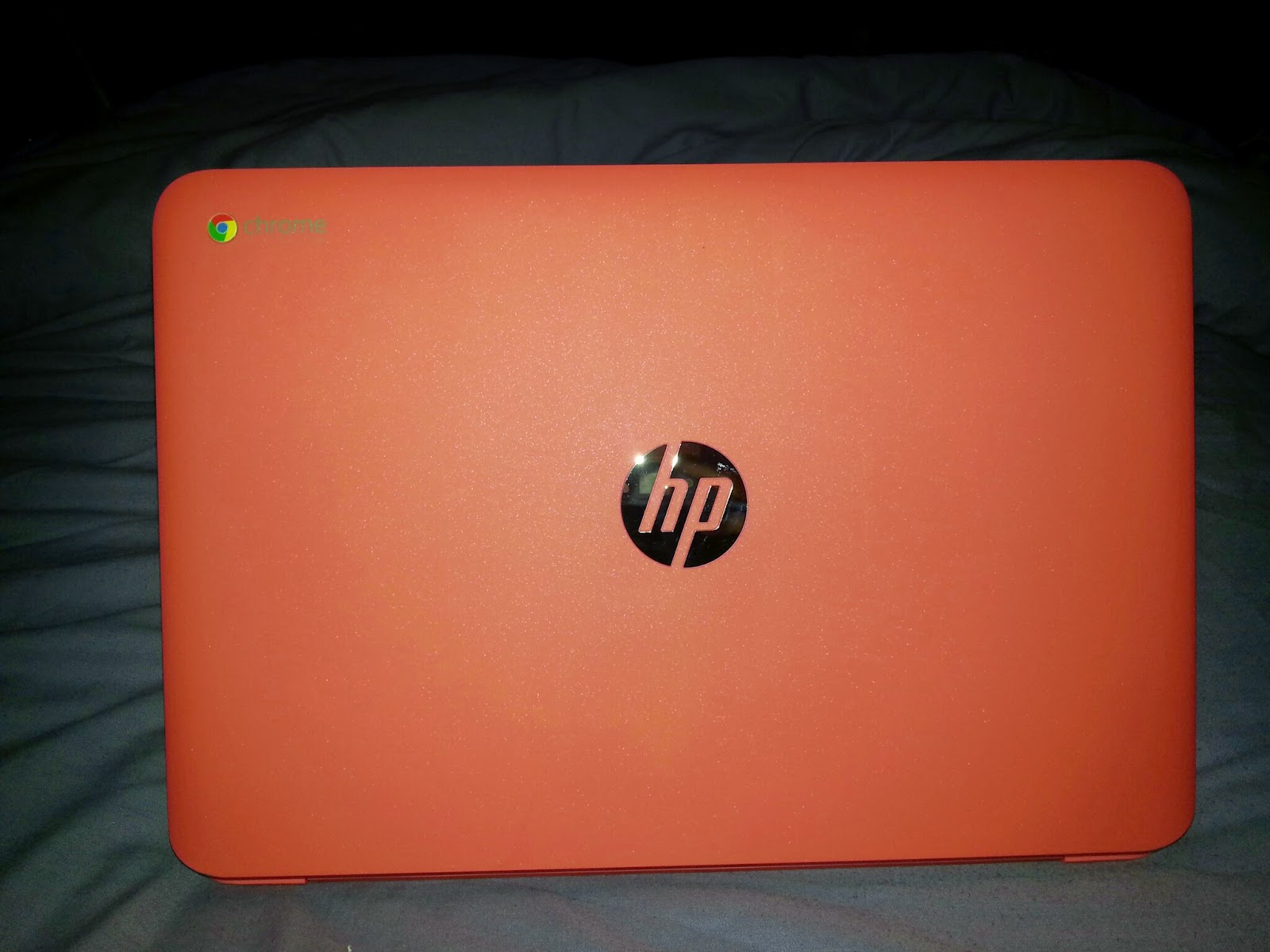


I received my Chromebook on Friday in a quite plain brown HP and Intel branded cardboard box with large padding blocks inside protecting it. I was struck by how slim and well built the HP 14 feels. The underneath is a kind of rubberised plastic, with 2 ventilation grills. 4 rubber feet prevent the device sliding on glossy surfaces. It has 2 speakers at the base of the screen, under the hinge, and they sound fairly good for what they are.


In the box there's a little Setup Instructions leaflet, the warranty and small PSU, which reminded me of the one from my Samsung N145 netbook.


The left side of the HP has two USB 3.0 ports, HDMI out and a headphone/mic socket. The right side has the power input, a single USB 2.0 port and the SD card slot. Photos on top of my Sony VAIO for comparison:


The setup instructions are barely needed as the Chromebook is so simple to setup, mainly constituting wireless setup and signing into your Google account.


After the brief setup process is the best time to setup Crouton to install Xubuntu alongside of ChromeOS. To do this you need to enable Developer mode, which wipes the device. I found plenty of good howtos, but I used this one here. Instead of Unity though I chose XFCE desktop and Trusty as my 'buntu version:

sudo sh -e ~/Downloads/crouton -r trusty -t xfce,gtk-extra,core,audio -e

This gives you a minimal Xubuntu setup. It's best not to install too much as it only has a 16GB SSD, of which part of that is taken already by ChromeOS.


The great thing about using Crouton is you can quickly switch between Chrome OS and Xubuntu using the CTRL + ALT + Shift and the arrow keys (located with the function keys along the top of the keyboard).


I like the smooth aluminium around the comfortably-sized chiclet keyboard. The keys have a fine texture so your fingers are not slipping off them and size and layout suits me. You'll probably notice the metal is a bit of a fingerprint magnet though! You'll also notice I bought the "coral" coloured model, because the white and silver models were out of stock. In some lights it looks pink and some lights it looks red or orange. I plan on toning down the look using these covers from Amazon. Some have complained about the screen but I am happy with it, perhaps because it's still better than a lot of my old laptops. The viewing angles are fine and it's plenty bright.


More than just a browser.

I have found that I can do a bit more than just web browsing on my Chromebook. It has a basic file manager that can access and play videos from USB hard drives etc. Chrome OS has a desktop with wallpaper and a panel (Google calls it a shelf) where you can pin apps to. There is a growing section of the Chrome store devoted to apps that work offline too. At the moment the only time I find myself switching to Xubuntu is to use Gtk VNC Viewer, as for some reason I can't seem to connect to my server using the VNC Chrome app.


The best thing about the HP Chromebook 14 is closing it and opening it later and finding it ready immediately. Suspend and resume works perfectly and the battery lasts over 8 hours, so you can use it pretty much all day without needing to plug it in. Also, from a cold start, it boots to the login prompt in 5 seconds! A couple more seconds and it's ready to work.

And there's still more interesting features being implemented in Chrome OS that I look forward to trying. With Android Lollipop phones will unlock when in proximity of your Chromebook (should you choose to use that feature).  Also you'll soon be able to run many more Android apps on your Chromebook. There are also plenty of choice when it comes to Chromebooks with new ones being released and updated every year.


Saturday, 30 August 2014

Revitalizing a Sony VAIO with Xubuntu 14.04 (Part 2)

Back in June of this year, I rescued a 2008 Sony VAIO VGN-N31S/W from a fate worse than being recycled, a life with Windows Vista. It had a dodgy power cable,  dead battery and a missing letter 'O' on the keyboard. I have bought a new PSU, upgraded the RAM from 1GB to 3GB and have just replaced the missing key.


When I first got the VAIO, I replaced the broken Windows Vista installation with Xubuntu 14.04 32bit, but I now wish I had installed the 64bit version. I wanted to reinstall but could not get it to boot from USB or DVD, which is odd because I managed it before. And I check every time that the boot settings are correct in the BIOS. I would also like to replace the dead battery but I am wary about spending more money it. I have recently switched from the Xubuntu desktop to Cinnamon desktop using the PPA and the how-to detailed in this article and it runs very well on the VAIO with it's 3GB RAM.


Having used the VAIO for about 2 months now I now know it's strengths and weaknesses and faults. Although it weighs 6.6lbs, it does not feel heavy when sat on my lap, but it does feel back-breaking when carrying it in my rucksack! I am not usually a fan of glossy screens but I love the VAIO's beautiful 15.4" screen that gives a 1280 x 800 (16:10) resolution. My family always remark how good it looks when I am showing them photos on it. I can also store plenty of photos on the 320GB hard drive, which is handy when away from the Internet. It also suspends and resumes perfectly and is very quiet in use, it's cooling fans can barely be heard. It's also the only laptop I have with an Express card slot.


On the downside, the keyboard is not as comfortable as most of my other laptops. I don't know whether this is because of age or dirt or it was built that way. I often find i get more typos than I do with my other laptops. The trackpad buttons aren't very responsive either, you have to hit them in just the right place for response. the trackpad itself is just fine though. It also would be nice if Sony had put Gigabit onboard rather than just 10/100 Ethernet.


Overall it does feel more of a consumer grade laptop than a corporate one, but I am fairly happy with the Sony VAIO, especially considering it has not cost me much to obtain and repair so for now I shall keep it running until it dies. I find it very useful for showing photos and videos to my folks, mainly because of that fantastic screen. I used to use my Samsung N145 netbook for this but the screen is tiny and not very bright, so despite it's weight, the power and screen of the VAIO makes it better suited to the job.


Monday, 2 June 2014

Revitalizing a Sony VAIO with Xubuntu 14.04.


Yesterday I rescued a Sony VAIO VGN-N31S/W from a life of Windows Vista and from being recycled as e-waste. It has a dodgy PSU cable (held together with green/yellow electrical tape) and one missing key-top on the letter O. The previous owner has put a bit of tape over it, so it still kind of works, though a little awkward to press. I'm hoping I might be able to pick up a cheap replacement key or replacement keyboard.


The battery is totally dead, and I had to set up the time/date and other settings in the BIOS. It's got a 1.66ghz Core 2 Duo CPU, Intel 950 onboard graphics (up to 256MB shared memory), a 320GB Seagate hard drive and a DVD writer. This machine still has it's original 1GB of RAM - 2x 512MB DDR2 sticks. It came to me in it's original box and has all it's manuals too. I even found the original receipt tucked inside the box, this laptop cost £599.99 in 2007, when it was new!


On boot up I discovered it had a messed up Windows Vista Premium install, so that had to go! I decided to install Xubuntu 14.04 on it, since it would run better on it's current 1GB RAM than Mint Cinnamon, which is my main distro of choice. At first I couldn't work out why it would not boot from my USB stick, despite already setting it to boot to USB in Boot Settings. Then I discovered there's another setting called "External Device Boot" that needs to be enabled, and that's in another section of the BIOS. Once the live disk had booted, the improved installer had Xubuntu installed in around 10-15 minutes. Everything went very smoothly and as far as I can tell right now, all the hardware works out-the-box. Wi-fi works and it suspends and resumes perfectly, which is not too surprising I suppose since this Intel chipset is well supported in Linux.


I have installed Cairo Dock, and my usual selection of favourite apps (gtkvncviewer, Audex, easyMp3gain-gtk, Filezilla etc) and a nice wallpaper that I have forgotten where I found. I did a Google Image search for "sunset wallpaper" and Large images in Search Tools.


Xubuntu runs really smoothly as usual, even on just 1GB RAM, though I still intend to replace the two 512MB sticks with 2x 1GB to max out the RAM. This is the first Sony VAIO I have ever owned and it feels fairly light compared to my Dell D520 and HP nc6320 laptops and has a bigger hard drive too, though the Dell and HP can both take 4GB RAM. It's also the first laptop I have owned that has an Express Card slot. I'm quite pleased it, once the RAM has been upgraded, keyboard repaired/swapped and the power lead fixed this should be a fairly decent and usable laptop.

Update 10/06/2014: Despite every site I have been to saying that 2GB is the maximum RAM this laptop would take, I have bought a 2GB DDR2 stick of RAM, for £10 which isn't bad at all, along with one of the original 512MB sticks, the VAIO is running just fine, more smoothly than with just 1GB RAM. I have also bought a replacement PSU too, as it's too tricky to try repair the original.


Sunday, 27 April 2014

From LXLE Back To Xubuntu

I have switched from LXLE back to Xubuntu on my Dell Latitude D430 and here's why: Firstly, none of the shortcuts I am used to worked in LXLE. Print screen, CTRL+ALT and cursor for switching between desktops, etc, none of those worked. Tab completion was missing too in bash. Oh and even though I added a battery applet in LXLE, sometimes it would still not start on login. All these little niggles drove me back to Xubuntu.


Xubuntu 14.04 LTS also feels much snappier than Xubuntu 12.04 did on the same machine. It feels so smooth and well thought out now. I found LXLE to be fairly well laid out but not as smooth. I also love the now default Whisker Menu, it's much more usable than the old XFCE menu.

Switching from LXLE to Xubuntu did not take long, I backed up some of my configs (.mozilla, etc) and did a wipe and reinstall, and I was up and running in about 15 minutes. I just had to reinstall VLC, xubuntu-restricted-extras and a few other apps and that was it. I've always generally stuck to LTS releases of *buntu releases, and Xubuntu 14.04 is truly excellent. Here's how my preferred desktop setup looks on my D430.


Monday, 21 April 2014

LXLE on a Dell Latitude D430


Until a few days ago, my Dell Latitude D430 was running Elementary OS, but I was getting frustrated at it's layout and decided to have a change of distro. A friend of mine recommended a distro called LXLE. It's a lightweight distro always based off the LTS release of Lubuntu, the LXDE desktop flavour of Ubuntu. It has various PPAs added and extra software, (useful codecs, applets etc) added. I've tried Lubuntu before but I didn't really like it for some reason. However, upon trying LXLE as a virtual machine in Virtualbox, I found LXLE to have a much better out-of-the-box experience than Lubuntu, so I decided it would be ideal for my D430.


LXLE feels more more consistent and overall neater than Lubuntu. Also Firefox is the default browser rather than Chromium. My only real criticism is I can't seem to find the shortcuts for switching desktops, which is usually Ctrl + Alt + Cursor keys for Lubuntu. I also think there are too many little games installed by default though that's only a minor point. Oh and there's no battery applet installed by default. Out the box, there's a panel at the bottom like Windows and a dock-style panel on the left that is set to auto-hide. I have changed the layout slightly, moving the lower panel to the top and the side one to the bottom, (keeping the lower panel in auto-hide mode). I have also installed Guake terminal and Dropbox.


LXLE has lots of tweaks and add-ons by default than Lubuntu like Aero Snap, Quick Launch, and there are "Four familiar desktop layout paradigms" though I stick with the XP paradigm, these can be chosen at the login screen under Sessions. The desktop system monitor and weather applet are neat touches too.

My Dell Latitude D430 has a 1.33Ghz Core 2 Duo CPU with 2GB of RAM which is the maximum supported, which I have found previously to struggle with "full fat" desktop OS and lots of browser tabs open, but it really flies on LXLE! Much like all *buntu flavours, it uses the same familiar installer and all the hardware works out the box. It feels even faster than Xubuntu 12.04 and Elementary OS, and I shall keep LXLE on it for now, I'd definitely recommend it for low end laptops and desktops and ideal to replace the recently unsupported Windows XP.

Saturday, 19 April 2014

Upgrading from Xubuntu 12.04 to 14.04

I have just upgraded my Samsung N145 netbook from Xubuntu 12.04 LTS directly to 14.04 LTS using "sudo do-release-upgrade -d" - which needs the "-d" because usually you are supposed to wait for the point release (14.04.1) before upgrading from the previous LTS.


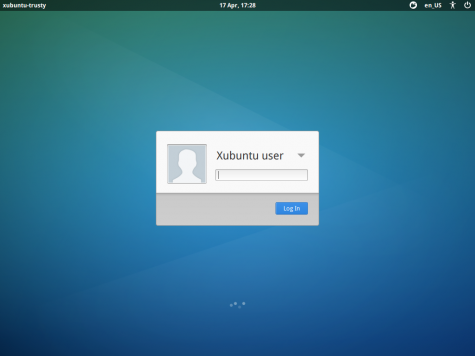
The upgrade went very smoothly, mainly because I only have a couple of PPAs added, most of the other software is from the default repos. The main new features I noticed were the much better looking login/lock screen (Light Locker), prettier boot screen and the new Whisker Menu which replaces the old menu. Note if you have upgraded from 12.04 you will have to replace the old menu yourself by removing the old one from the panel and adding the new one. Sean Davis has already done a nice rundown of the new features in 14.04. Overall it seems to be worth the upgrade, a good solid release.