Wednesday, 30 April 2014

Google Chromecast Unboxing and Review.


I recently picked up a Chromecast, they have not been out for very long here in the UK and I couldn't wait to get hold of one! Following is an unboxing and initial impressions of the device.


What's in the box?


Once the seal is broken there's a internal section (shown above) that slides out and opens up showing the device on top, with Getting Started instructions to the left on the lid.


Underneath is the charger, Micro USB lead and handy HDMI extender lead.


Simple Setup

The Chromecast is very simple to setup. Plug the HDMI end into your TV or Amp (with or without the HDMI extender). plug the supplied USB cable in the other end, and charger into the wall.


Once the device is all plumbed in, switch your TV to the correct HDMI input and follow the setup instructions onscreen. Everything is controlled from the Chromecast app on your Android or iOS device, or from Chrome browser. Everything should go well as long as you make sure both the device and controlling device are connected to the same router (for places that have wireless APs).


When idle the device shows some pretty wallpapers that change every few minutes.


Chromecast app on Nexus 7


Paused YouTube video

Then it's just a case of choosing what to send to your Chromecast. Out the box you can send YouTube videos and play music from the Google Play Music app, and send entire Chrome tabs from your computer, which is very handy!

Tech Thoughts on the big screen!

There are a growing number of little apps that allow you to do even more with the Chromecast. Localcast is one handy little app that allows you to cast media from your tablet, mobile, or web browser and has some other neat tricks. Also BBC iPlayer apparently works out the box though I have yet to try it.

The app and media server Plex is also very handy. I already had Plex setup on an Ubuntu Server PC and the Plex Android app has a cast button to cast content to the Chromecast, so photos, videos and music can be cast from a server upstairs down to TV in the living room.

Plex app and Air "Sexy Boy" streamed to the TV using the Chromecast

Chromecast is great for quickly showing someone a slideshow on a bigger screen, or a few YouTube videos, or for throwing a Chrome tab up on a TV like using a TV as a second monitor. With a growing number of Chromecast apps appearing it should be even more useful and I am still experimenting with more apps.

I found the setup pretty easy, as long as you have a decent network speed, and have not got a complicated amp/HDMI switch setup. It works best plugged directly into the TV if possible. It's certainly a lot less hassle then the Roku device (that I am about to return to the shop, more about that in another blogpost soon!)  The Chromecast works very well and I think it is great value for money and dare I say it, I love the Chromecast!


Update: Roku 'review' here.


Sunday, 27 April 2014

From LXLE Back To Xubuntu

I have switched from LXLE back to Xubuntu on my Dell Latitude D430 and here's why: Firstly, none of the shortcuts I am used to worked in LXLE. Print screen, CTRL+ALT and cursor for switching between desktops, etc, none of those worked. Tab completion was missing too in bash. Oh and even though I added a battery applet in LXLE, sometimes it would still not start on login. All these little niggles drove me back to Xubuntu.


Xubuntu 14.04 LTS also feels much snappier than Xubuntu 12.04 did on the same machine. It feels so smooth and well thought out now. I found LXLE to be fairly well laid out but not as smooth. I also love the now default Whisker Menu, it's much more usable than the old XFCE menu.

Switching from LXLE to Xubuntu did not take long, I backed up some of my configs (.mozilla, etc) and did a wipe and reinstall, and I was up and running in about 15 minutes. I just had to reinstall VLC, xubuntu-restricted-extras and a few other apps and that was it. I've always generally stuck to LTS releases of *buntu releases, and Xubuntu 14.04 is truly excellent. Here's how my preferred desktop setup looks on my D430.


Tuesday, 22 April 2014

How To Add a Battery Applet To LXLE

I noticed after some use of the excellent LXLE distro on my Dell D430, that there was no battery monitor installed by default. There is an ASCII type monitor in the menu but not an applet, so I did a bit of Googling and found this little how-to for LXDE in Lubuntu/Mint. I had to modify that a little. I shall reproduce the entire method here anyway in case that page disappears.

Install fdpowermon in the same way with:

sudo apt-get install fdpowermon

Next up it's slightly different since the sessions are different in LXLE. There are 5 sessions: G2-Paradigm, Netbook-Paradigm, OSX-Paradigm, Unity-Paradigm and XP-Paradigm so replace as appropriate.

gksu gedit /etc/xdg/lxsession/XP-Paradigm/autostart 

Then append @fdpowermon as in the original how-to like so:


Save the file and exit, then logout and login and you'll now have a battery monitor applet, and we're done!


Monday, 21 April 2014

LXLE on a Dell Latitude D430


Until a few days ago, my Dell Latitude D430 was running Elementary OS, but I was getting frustrated at it's layout and decided to have a change of distro. A friend of mine recommended a distro called LXLE. It's a lightweight distro always based off the LTS release of Lubuntu, the LXDE desktop flavour of Ubuntu. It has various PPAs added and extra software, (useful codecs, applets etc) added. I've tried Lubuntu before but I didn't really like it for some reason. However, upon trying LXLE as a virtual machine in Virtualbox, I found LXLE to have a much better out-of-the-box experience than Lubuntu, so I decided it would be ideal for my D430.


LXLE feels more more consistent and overall neater than Lubuntu. Also Firefox is the default browser rather than Chromium. My only real criticism is I can't seem to find the shortcuts for switching desktops, which is usually Ctrl + Alt + Cursor keys for Lubuntu. I also think there are too many little games installed by default though that's only a minor point. Oh and there's no battery applet installed by default. Out the box, there's a panel at the bottom like Windows and a dock-style panel on the left that is set to auto-hide. I have changed the layout slightly, moving the lower panel to the top and the side one to the bottom, (keeping the lower panel in auto-hide mode). I have also installed Guake terminal and Dropbox.


LXLE has lots of tweaks and add-ons by default than Lubuntu like Aero Snap, Quick Launch, and there are "Four familiar desktop layout paradigms" though I stick with the XP paradigm, these can be chosen at the login screen under Sessions. The desktop system monitor and weather applet are neat touches too.

My Dell Latitude D430 has a 1.33Ghz Core 2 Duo CPU with 2GB of RAM which is the maximum supported, which I have found previously to struggle with "full fat" desktop OS and lots of browser tabs open, but it really flies on LXLE! Much like all *buntu flavours, it uses the same familiar installer and all the hardware works out the box. It feels even faster than Xubuntu 12.04 and Elementary OS, and I shall keep LXLE on it for now, I'd definitely recommend it for low end laptops and desktops and ideal to replace the recently unsupported Windows XP.

Saturday, 19 April 2014

Upgrading from Xubuntu 12.04 to 14.04

I have just upgraded my Samsung N145 netbook from Xubuntu 12.04 LTS directly to 14.04 LTS using "sudo do-release-upgrade -d" - which needs the "-d" because usually you are supposed to wait for the point release (14.04.1) before upgrading from the previous LTS.


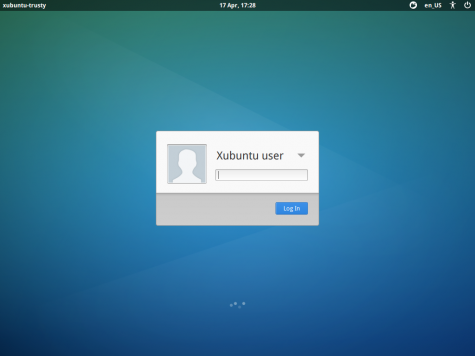
The upgrade went very smoothly, mainly because I only have a couple of PPAs added, most of the other software is from the default repos. The main new features I noticed were the much better looking login/lock screen (Light Locker), prettier boot screen and the new Whisker Menu which replaces the old menu. Note if you have upgraded from 12.04 you will have to replace the old menu yourself by removing the old one from the panel and adding the new one. Sean Davis has already done a nice rundown of the new features in 14.04. Overall it seems to be worth the upgrade, a good solid release.


Thursday, 17 April 2014

Ubuntu 14.04 and it's other flavours have been released

The latest LTS from Canonical has now been released, Ubuntu 14.04 "Trusty Tahr" and of course the Xubuntu, Kubuntu, Lubuntu versions should all be available. I managed to download the Ubuntu version in just 15 minutes, by direct download, and have also downloaded the Xubuntu version. Next up I'll be upgrading some of my machines from 12.04 LTS directly and hopefully do a review.


Thursday, 20 March 2014

Windows 9: Microsoft’s Latest Effort to Stay Relevant

Microsoft will announce Windows 8′s successor, codename “Threshold”, at their annual build conference in April this year, and most likely release it as Windows 9 in April 2015.

Windows 9, Windows 8, laptop

First a little history lesson. After the poorly received Vista and popular Windows 7, and after having missed the smartphone and tablet boom of the Apple iPad and Google’s Android systems, Microsoft decided to muscle in on the smartphone and tablet market with Windows RT and Phone 8 operating systems. But Microsoft made the big mistake of forcing the Metro (“modern”) interface in Windows 8 onto every platform, including non-touchscreen desktop and laptop computers. This has confused and frustrated a lot of users, no matter how many expensive TV adverts Microsoft put out. Microsoft Surface and Windows Phones have not made much of a dent either.


Windows 9, Windows 8, AOL Repeat


First Microsoft already has a  minor fix for 8 called 8.1, which merely brings back the Start button as well as some other fixes. This is a mistake since users don’t only miss the Start button, but actually miss the Start Menu too. As I have said before, switching from the touch-friendly Metro to the not very touch friendly desktop and back again feels awkward. Doing that every time I want to search for an application gets old fast! Both Apple and Google have sensibly, generally, kept desktop and mobile devices on separate operating systems (OSX and iOS, ChromeOS and Android) although Android seems to have jumped to all-in-one desktops at CES2014. However Android with it’s many OEMs, is far more flexible than Windows when it comes to custom interfaces. With the right skin, Android could make some inroads into all-in-one or laptop markets.


Lenovo ThinkVison-28

As Microsoft blogger Paul Thurrott states here, Windows 9 “needs to be everything that Windows 8 is not.” Although nothing has been set in stone yet, it will most likely have a windowed version of Metro that will work better on the desktop. This will supposedly make Metro apps, however few and little-used they are, integrate better into the desktop.

Microsoft’s backtracking fix to Windows basically makes Windows 8/8.1 the new Vista/SP1, but it might be too late for Windows to stay relevant for long. Google Chromebooks have outsold Macbooks in the US, and iPads are still leading tablet sales in the US. With Android dominating smartphones worldwide and making fast inroads into desktops and hybrid laptops, Microsoft Windows seems to becoming increasingly irrelevant. As Thrurrott put it, “Windows 8 has set back Microsoft, and Windows, by years, and possibly for good.” With many home users only needing browser based web apps and social networking sites, a Chromebook or Android desktop/laptop/tablet could be all they need. Even in the usually Windows dominant gaming market, Steam boxes that run Valve’s Linux-based SteamOS could eventually replace Windows once enough games are available in Steam for Linux. In the corporate world, most businesses will probably stick with the familiar Windows 7 until mainstream support for it ends in January 2015 while planning a switch away from Windows to a more secure, flexible platform, be that Chromebook and server based apps, Ubuntu or other desktop Linux, Android or OSX. One thing’s for sure, Microsoft Windows has a treacherous rocky road ahead.