Showing posts with label hardware. Show all posts

Tuesday, 18 January 2022

REVIEW: 6S Foldable Wireless Stereo Headphones

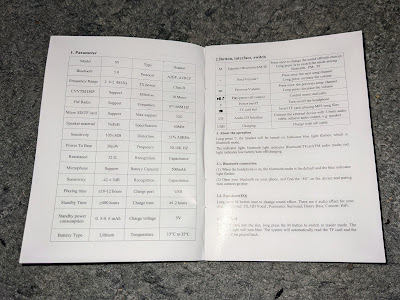
My old small foldable headphones recently stopped working properly, and they were getting tatty, so I quickly looked for a suitable replacement set. These 6S foldable headphones were highly rated on Amazon so I went for them. I chose them as they have USB C charging, wired and Bluetooth (5.0) modes and were cheap at just 22 quid. They can also play music from an SD/TF card of up to 32GB, and have an FM tuner too, though I doubt I will use that. They have a claimed playing time of 10 to 12 hours. My pair are black and gold but they're also available in other colours. 
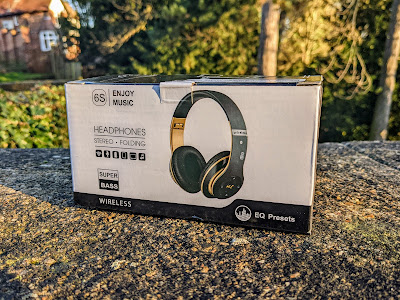

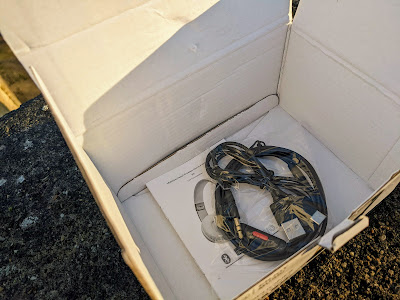
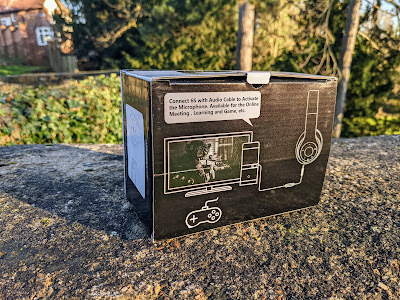
Upon unboxing, it took me a few moments to find the USB C port, it's discreetly placed on the side of the left headphone can. Inside the box there is a small instruction manual, a USB C lead and a reasonably long 3.5mm jack-to-jack audio lead (with inline button) to use them in wired mode. Being USB C, I can also charge them with my phone charger, which is handy, as it means I only have to carry one charger with me. 

On the left can they have the Power button, Play/Pause/Call Control button, 'M' button (short press to change EQ mode, long press to switch between Bluetooth, FM and SD/TF card) and forward and back buttons. The SD/TF card slot is on the shoulder of the can and the headphone jack on the base of it.
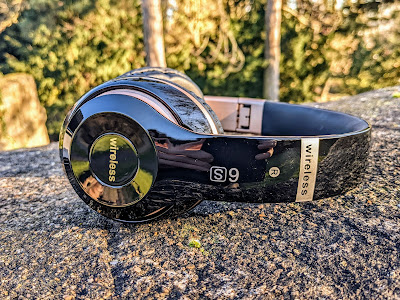

The 6S fold up to a fairly compact size. Not sure how long the hinges will last, they open and close with a hard click sound each time. 
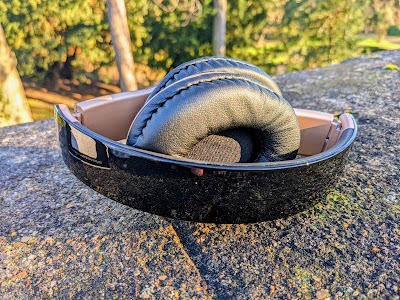
They are fairly comfortable to wear for an hour or two, but the only adjustment is the sliders for the band on them, so it may not suit everyone, and they really could do with a bit more padding at the top where it sits on your head. Wearing a hat underneath them might be a good idea... 

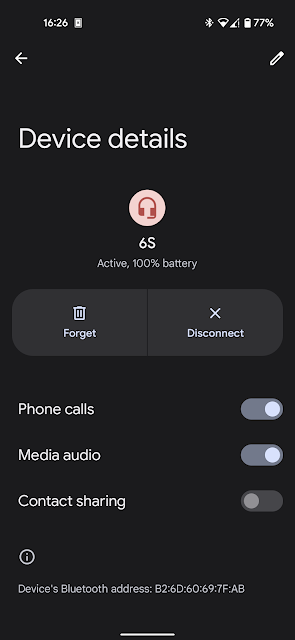
When you turn them on for the first time they go into pairing mode and they pair just like any other Bluetooth headphones. I had no issues pairing them to my Pixel 4a. A voice announces "power on" and "power off". 


They have plenty of bass and are very loud, both in Bluetooth and wired modes, which is great. In wired mode they are louder than my budget JBL cans that I use on my workstation PCs. Even when not playing music the shape of them blocks out other sound to a certain extent.


Conclusion

So, overall these are a reasonably decent set of foldable Bluetooth headphones that have a bonus of wired and SD card modes too. Decent enough sound quality, plenty of bass and also nice and loud! They fold up to a handy size and can be used wired if the battery runs out while I am out. And I can charge them with a USB C lead and portable battery pack if I want to. For £22 on Amazon, they're worth keeping in my rucksack for when they're needed. 


Wednesday, 10 November 2021

Installing KDE Neon on a Lenovo Thinkpad X201

I recently acquired a Lenovo Thinkpad X201 from Tech Thoughts contributor Simon Royal, as he has upgraded to a newer and quicker Dell Latitude. This is only the second Thinkpad I have owned, the first being a W500 that had a failed discrete graphics chip, so it sits on a shelf as spares. The X201 reminds me of a smaller version of that, much lighter, and significantly more powerful, having a second gen Intel i5 M520, 2.4ghz quad core CPU instead of a Core 2 Duo and has Intel GMA integrated graphics. Being a little 12.1 inch laptop, it's much lighter than either the W500 or my old E6500 Latitude.


The great thing about these old Thinkpads (and Dell Latitudes) is they are easy to upgrade and replace components, Simon fitted 8GB RAM and a 128GB SSD. And also of course, like the Dell, they run Linux like a champ!       


Installing KDE Neon

I downloaded my distro of choice, the latest version of KDE Neon User Edition, and flashed it to a memory stick using Etcher. After setting the boot device to USB in the BIOS, it was just a case of installing in the usual way from the live CD installer, which took no time at all.

On first boot I was impressed how snappy this thing runs! Neon runs much better on this than my older Dell Latitude E6500. It's a definitly a step up from the older machine. The first thing I did after logging in was disable the silly update on reboot thing that KDE has now, as I detailed in a previous blog post, and immediately switched to Breeze Dark theme. Next I removed snapd and installed Synaptic package manager because Discover is infuriating! 


I then installed all my most used apps, such as Google Chrome, Filezilla (FTP client), Soundkonverter etc, and most importantly GIMP. I mostly use my Chromebook for general browsing the net and stuff but GIMP takes a while to start and still does not work properly in Linux on my Chromebook, copy and paste does not work properly for me, so this is one reason why I like having a 'proper' Linux running laptop to hand, with more storage and proper filesystem etc. 

As with all my KDE installs, I use Latte Dock and Papirus icons and Breeze Dark is my preferred desktop theme, and I configured KDE Connect to sync with my phone and other computers. 


There was a brief hold-up when Launchpad was down for several minutes so I had to wait a bit before I could install Strawberry music player via their PPA. Strawberry is a fork of Clementine, which has not been updated in years. Strawberry is great for large collections and has transcoding and good tag editing support.  

The X201 has the old ThinkLight that lights up the keyboard somewhat, before backlit keyboards became common. It's not quite as good as backlit keyboard but still better than no illumination at all, which none of  my other working laptops have, including my Acer Chromebook 14. 

The keyboard is a small but very usable classic Thinkpad design, it's nice to type on, though let down by the very small trackpad, one downside of tiny laptops. It's wide enough but not deep enough so two finger scrolling is more awkward, compared with the large trackpads on larger or more modern laptops, like my Chromebook, so I mostly use a USB mouse. I prefer using a mouse for image editing anyway.

I disabled the Nipple Mouse (TrackPoint) in the BIOS as I have never got on with it all and it stops me accidentally moving the mouse when catching it while typing. The screen is not bad but not quite as nice as my Dell, and whoever first purchased it specced the lower screen resolution version too, it's typical for a base spec business grade laptop. It does go quite bright if you want it to but I tend to have it less than half brightness. I've also found its SD card reader (located at the front of the X201) very useful for my old camera SD cards. Unlike most of my older laptops, it can support the larger size SD cards.  


I mostly use the X201 for a bit of browsing and making memes in GIMP while relaxing on the sofa, plus other stuff that is not possible (or very difficult) with a Chromebook, such as a bit of audio transcoding with Soundkonverter, and it performs just fine at those tasks. At times lately it actually feels snappier than my Chromebook, probably helped by the 8GB RAM, compared with only 4GB on my Acer Chromebook 14. Obviously with it's 4 cores it performs audio conversion significantly faster than my old C2D Dell Latitude, so overall I really am quite pleased with it, it's a fine little machine for its age.  


Update 18/01/2021 - I found that occasionally I have been getting the dreaded Fan Error preventing it form booting, so I think it could do with a clean, though that is quite a fiddly process of removing a dozen screws, keyboard and other bits. I am hoping i have alleviated the issue somewhat by installing and configuring Thinkfan, which should keep the temperatures in check too. I also found this forum post here helpful 

Sunday, 22 December 2019

From Google Pixel XL to Google Pixel 3a

I needed a replacement for my ageing first gen Google Pixel XL as the battery has pretty much had it and I managed to crack part of the screen on it too. I knew the ideal replacement would be the Pixel 3a and luckily it was reduced in the Black Friday sales not long after my birthday. I chose "Just Black" as I didn't like the odd colour buttons on the other colours. And the Purple-ish wasn't purple enough for me. This is the first time I have had a brand new device, I have always owned secondhand phones.

I chose the Pixel 3a as it's about half the price of the new flagship Pixels but still has a great camera and stereo speakers of the flagship.  As a bonus, unlike many flagships now, including the Pixel 4, it has no screen notch and it has a headphone socket!


Transfering my settings between my old Pixel XL and the Pixel 3a was very easy with the provided OTG adaptor in the box, it walks you through the steps. it synced messages, installed apps, various system settings and the photos I had stored on it.


Although the screen is slightly larger than my old XL (5.6" instead of 5.5"), the device as a whole (being the non-XL version) is actually smaller and lighter. It feels significantly lighter at 147g than the Pixel XL's 168g. I assume the plastic body saves quite a bit of weight. The screen is OLED rather than AMOLED, it seems brighter, crisper, though it has a lower pixel density (~441 compared with ~534).


I love Ambient Display on the 3a, constantly showing the time and what music is currently playing is very handy. Also I don't think I have ever previously had the option of  listening and identifying what's playing nearby, all the time. Lift to Wake is always great to have too.


The Pixel 3a has a feature where you squeeze the sides of the phone to activate Google Assistant, I haven't had a phone with that before. I haven't really played with that much, apart from it accidentally being squeezed in my pocket. I've changed the setting so that now it won't activate with the screen off. I have a cheap flip case on it, as I wanted to protect it, it still allows the sides to be squeezed.


Problems?

Only slight issue I have had is the GPS was all out of whack. At first it struggled to find my location at all, then I calibrated the GPS in Google Maps and GPS Status app. Oddly the Untappd app had location completely disabled in its settings for some reason so I fixed that. And that's the only minor issue I have had so far. It still seems to go off a bit and needs calibrating every now and then.


Battery Life

With the knackered battery in my old Pixel, I would start getting anxious at 60 something percent, but with the 3a I'm getting much better usage, thankfully. Though my old XL had a slightly bigger battery, it was so worn out I could run my battery down in less than an hour of web browsing and it would often shutdown at 30 or more percent.

My first full days usage, which is always the heaviest as you end up playing with it the most, I got over 16 hours usage. This was a day of sitting in coffee shops and pubs browsing the net on the wifi a lot, and walking round taking plenty of  photos.


I am now mostly getting between 16 and 19 hours, often with over 5 hours screen time, and that's when letting it go down to around 15%, with Ambient Display and Bluetooth on all the time. I always have it connected to my Xiaomi Mi Band 4 watch.


Cameras

Part of why I went for the 3a is of course the camera, and it's fantastic! The original Pixel was impressive for the time and this is even better, I am very impressed, particularly as this isn't a flagship device.


The selfie camera is great too, and the Portrait mode, where it blurs the background of the shot around you, makes them even better. Those work most of the time, but it's worth taking several shots to make sure at least one of them works right, particularly if you have wild hair. This photo was taken at sunset, so it's in fairly low light.


Night Sight is even more impressive on the 3a than on my old Pixel. These photos were taken around 10pm. These were just quick shots taken off a bridge and in a market square.


Some more Night Sight shots taken on another wet winter night:


It also takes Motion Stills, which seem to be automated, they're a few photos bunched together in a little animated gif. Can be useful for capturing a reaction of someone or a car going past.

The 3a also takes much better videos than my old  Pixel XL, they look brighter, less washed out.  Having optical image stabilisation also helps, my old XL didn't have it.


I am very happy with my Pixel 3a so far, it's been the first smartphone I have had where everything works near perfectly. It is buttery smooth, has a great camera, good screen, and all day battery life. It's taken a little getting used to the new Home screen navigation, swiping up from the bottom to show recent apps, rather than pressing the right hand on screen button on my old XL. I could have just installed a third party launcher and changed it to the old way, but I'd rather keep it stock for now. I hope to keep my pixel 3a for as long as possible, as long as it still works well.

Thursday, 28 February 2019

Motorola Moto X Style Review

I fancied a phone upgrade and it had to be a Motorola, so I picked up a Moto X Style. The X range was their flagship range and the X Style (known as the X Pure Edition in some parts) is the third iteration released in 2015.

The impressive specs, the fact my wife bought one recently and the glowing review of the second gen Moto X from fellow writer, Moto fan and owner of this blog, Carl Draper, helped sway my decision.

Specs

Spec wise, the Moto X Style features 64-bit Hexa Core Snapdragon 808 processing, 3GB RAM, 5.7” IPS screen, 32GB internal storage, SD slot, 21 megapixel camera and dual flash capable of recording 4k video at 30fps. It has a 5 megapixel front camera with flash, stereo front facing speakers and a fairly hefty 3000 mAh built in battery. It shipped with Android Lollipop and was upped to Marshmallow and Nougat.

The right side has the power and volume rockers, the bottom has the Micro USB port, the left side has nothing and the top has the headphone socket (a necessity for me) and a pull out tray which houses the Nano SIM and Micro SD card. I like this as it means you don’t have to take the back off to access them. My wifes has a dual SIM, but mine only takes one.


That's the technical specifications dealt with, but how does it handle day-to-day?

Feel

The Moto X Style is a large handset, but feels very comfortable. As will all Moto handsets the build quality is superb. Mine is the black version with a wooden style back, my wifes is the champagne version, which has a light blue back and light blue speaker grills on the front.


Battery and Performance

The large 3000mAh battery offers impressive battery life - easily coping with a more than a day of average use and it ships with a quick charger. The 3GB of RAM certainly gives it some breathing room and the Hexa Core processors handle everything with a breeze. Nothing is slow on it, the OS is superfluid and apps open and run very quick. I’m not a gamer so couldn’t say how it handled in that area.

Screen and Audio

The 5.7" screen is large and bright and the 520 ppi makes it super crisp. Notifications are displayed on the lock screen and the screen can be woken with just a wave of the hand in front of it.


Call quality is clear and loud. It is a phone after all so it needs to excel in its primary function. The audio from the stereo front facing speakers is superb (for a phone). I haven’t even bothered to pair up my bluetooth speaker yet.

The headphone socket was essential and produces louder music than on my previous phone with the same earphones. I had a brief issue with fluff and paper stuck in it preventing it being used - the perils of buying a used phone - but I have resolved this now.

Camera

The 21 megapixel camera takes amazingly sharp photos. The image stabilisation is very good.  The camera opens quickly - via the menu or by double pressing the power button - and there is zero delay in snapping pictures.

It can also shoot videos in 4k. This is a pointless addition personally as I never need to shoot video that high, but its nice to know it is possible.

Storage

The 32GB internal storage will make a huge difference. 16GB on my previous handset was getting tight. Coupled with my 64GB Micro SD card I now have almost 100GB of storage.

Packaging

A small note. Boxes never normally interest me, however this X Style came in the biggest most impressive box I have ever seen for a mobile phone.


Comparison To G4

This Moto X Style was replacing my beloved Moto G4 which has been used daily for two years and never let me down so finding a replacement wasn’t going to be easy. While the specs are not drastically increased, the larger internal storage and RAM on the X Style made it a good decision. The larger crisper screen, inclusion of stereo speakers and NFC added to it. The improved cameras sealed the deal.

Conclusion

I am very impressed with this X Style. It looks amazing especially with its wooden style back and the bump in storage will help dramatically. It may be stuck on Android version 'Nougat' (currently two revisions behind the latest), but this doesn't matter too much in the Android world.

Written by Simon Royal. Follow me at twitter.com/simonroyal

Tuesday, 5 June 2018

A Month With Linux Mint… On A 2012 MacBook Air

This is a follow up article to my ‘7 Days With Mint’. A month in and I am still running Linux Mint 17.3 ‘Cinnamon’ on my MacBook Air 2012. It is dual booted with macOS Sierra, but in a month I haven’t used macOS.

I had a few teething troubles which seemed specific to Apple hardware, some of which I have ironed out.

The heat issue seemed to calm down shortly after writing the previous article. I am not sure if it was settling in or drive indexing but I now have a quiet cool MacBook Air again.

The poor battery life has been improved, by installing PowerTop and turning everything labelled ‘bad’ to ‘good’. Battery is still not as good as under macOS, but it has drastically improved.


I discovered a problem watching online videos - from various sites - with the video flickering constantly. This was resolved by installing the Intel video drivers, which were in the Driver Manager tool rather than the default ones.


Two issues I still haven’t resolved and may never is the very sensitive mouse tap, which still causes me to accidentally send my mouse pointer to places I don’t want and it still doesn’t always wake from sleep with I lift of the lid, although this has also improved since tweaking PowerTop.

I am getting used to the feel of Mint, slowly the new keyboard shortcuts are becoming more natural rather than having to think for a second before remembering I am not in macOS. The same with general navigation, I now look to the bottom right automatically for the clock rather than top right.

I have ventured a little further in to apps, slowly installing items that I would use everyday in macOS. I have installed software so I can edit the websites I maintain (gedit, gFTP and GIMP) which I managed to do and upload successfully.


I need to dig deeper into tools for music management and video conversion for me to feel totally happy.

I am pleased how the journey is going. Day by day I am learning more and feeling more comfortable, but there is still so much to learn - especially if something goes wrong.

However it has certainly opened my eyes to the possibility of leaving the Apple world behind and when it comes to the end of life for my MacBook Air, it would be a non-Apple laptop I look for next.


Written by Simon Royal. Follow me at twitter.com/simonroyal

Friday, 11 May 2018

7 Days With Linux Mint... On A 2012 MacBook Air

I’ve been a linux fan on the side for a long time, dipping in to it and then going back to my Mac. However, my love of Apple has faded lately and with my 2012 MacBook Air getting older by the year Linux is looking a viable option for the future. Before I dive in, ditch my Mac and live in a non-Apple environment I thought I would try and get to grips with Linux a bit more. I couldn’t go full time in an OS I am not 100% comfortable with. While I am no Linux n00b, I am not that experienced either. So a week ago I installed rEFInd - an EFI boot manager for Apple computers - partitioned my SSD and installed Linux Mint 18.3 Cinnamon ‘Sylvia’ (ensuring I have 8GB for swap). Mint is my go-to distro. I love the look, it works fantastically and I am the most comfortable in it.

First impressions were impressive. Everything worked and it looked superb. All hardware was detected and setup correctly, even down to the Mac specific hardware keys for screen brightness, sound and keyboard backlight. My MacBook Air is no slouch, a 1.7Ghz i5 with 8GB RAM and a 256GB SSD and under Mint it performs even faster than macOS. This is not a pros and cons of Linux article. Anyone looking in to it knows its advantages and limitations in comparison to the competition. The GUI of Linux Mint shares a look between macOS and Windows. It has a bottom task bar a ‘Mint’ Start menu and a clock in the bottom right. Drives mount and show on the desktop and Notifications pop up to the top right of the screen. Keyboard shortcuts also mimic Windows using a Control key instead of an Apple key - but oddly enough Control+Q closes windows - a mix of Control + F4 for Windows and Apple + Q on macOS. The Apple (or command) key now activates the 'Mint' menu.

Once you get your head around changed shortcuts and screen decor being in different places navigating and using the OS is great and simple.

Installing apps isn't as difficult as it used to be. The Software Manager is an app store which makes finding and installing apps easy, but other apps can be downloaded and installed from websites just like macOS and Windows. I installed DropBox and a text editor called Sublime without any issues.

Performance is superb, but on this hardware it does have some specific issues. Battery life. This takes a significant hit, lasting almost a third less and that is under average load. I have yet to do anything very processor or drive intensive yet. Heat. My Air runs very cool under macOS, but under Mint it has heated quite bit with more fan action than I have ever experienced before. It happens especially when it is on charge. Initially this was a worry, but after the first few days, this has drastically reduced. Writing this article now my Mac is back to no fans, silent and relatively cool. Mouse. I reversed the scroll direction and lowered the pointer speed, but the tap is very sensitive and I cannot seem to lower this. I have on a number of occasions accidentally tapped when moving my finger across the pad. It has also detected a drag and sent a few windows where I didn’t want them. Being a Mac it only has one mouse button. It took a while to work out tapping with two fingers will bring up a right button sub menu. Sleep. Waking from sleep can be little temperamental. Opening the lid wakes the machine 95% of the time, but a few times I have had to prod the power or escape key to give it a little nudge. Battery Low Indicator. When the battery gets critically low it pops a warning, however plugging in a charger doesn’t automatically dismiss this. You have to manually click it. A small annoyance. Everything else has worked fine. I have ran the multiple updates to ensure everything is up-to-date. I would like to stress that these are not specific issues with Linux or even Mint, rather particular issues when combining Linux with a MacBook. Others have experienced these with different distros. I have never come across these issues before and I have run Linux on various machines from ThinkPads to other Macs without these problems. At first I was very disappointed with the heat issue. After all I don't want to damage my MacBook Air. The others are minor issues.

I thought it was going to call time on my Linux venture, but I will keep a mindful eye on temperature. The more I use and get used to Linux and Mint the more I enjoy it. After 20 years of using a Mac and Apple OS it is going to be strange to get used to.

Wish me luck.

Written by Simon Royal. Follow me at twitter.com/simonroyal

Monday, 30 April 2018

Fallen Out Of Love With Apple. But Whats Next For Me?

I’ve been a massive advocate for Apple and the Mac platform for nearly two decades, but of late my love of them has become less love, more habit. Once locked in to the macOS and iOS ecosystem, about 18 months ago I broke free, ditched my iPhone and jumped in to the Google camp.

This was a major step, it meant I no longer required a Mac to take advantage of my phone. The cat and mouse game of will my phone version work with my Mac and will my Mac version work with my phone is no longer there.


My Android based Motorola Moto G4 has served me amazingly for over a year and I can not fault it in any way. It works very well too with a Mac, but it isn’t tied to it.


With every year that passes my beloved MacBook Air gets older and older. A 2012 11” with i5 processor and 8GB of RAM means it is still no slouch and hardware wise probably has a few more years left, but Apple increasingly push hardware and drop older models with each new release of macOS. I am running Sierra, I haven’t bothered with High Sierra and the next version is just around the corner. Whether you want to run the latest or not sometimes you are forced to by software developers or Apple themselves. There is a good chance the next version will be the last for my now 5 year old Mac and that puts it on the slippery slope to ‘low end’.

So what next? I no longer drool over the latest Apple tech and I certainly don’t have the funds to stump up a £1000 for another Mac. Going the used market route saves you a few hundred but puts you closer to the eventual cut-off where you will be in the same position again.

I have had a keen interest in Linux as a desktop operating system for years, dabbling in various distros - such as Mint, Ubuntu, LXLE to name a few - and learning the basics, but it has always been a side interest, a geeky look at what those ‘nerds’ run. However it is no longer spotty speccy geeks who snort with excitement over new kernel releases or wet themselves over the newest LTS release. It has become a real contender in the OS wars. It places itself sandwiched between Windows haters and those who either can't afford Apple hardware or those who don’t want the lock-in you get with them.

Looking at my list of apps sitting in my dock, I see very little that is Mac exclusive. I browse using Chrome, I use GMail for emails, I write in Google Docs or use OpenOffice. I use VLC for video use, Audacity for audio tweaking, HandBrake for video conversion and DropBox for off site back ups. All of which are available for Linux, some of which were originally Linux apps ported to the Mac.

I have a few other minor apps, which may not be on Linux but I am sure there are just as suitable alternatives.

I no longer use iTunes everyday. It is used mainly for editing tags and adding artwork to music and since leaving iOS I don’t use Photos anymore.

Android File Transfer is an awful piece of essential software for any Mac user with an Android, but isn’t required in Linux as most support native mounting with drop and drag.

The one caveat to not owning a Mac would be Adobe Photoshop. Being an ex professional graphic designer I grew up learning Photoshop and despite many attempts haven’t found anything to match it. Perhaps there are or perhaps I am just too set in my ways to get my head around another graphics package. If I am honest it is one of the main things holding me to my Mac.

However, it isnt just about apps. Linux is a large learning curve. It may be nix based and OSX/macOS may share similar ideas, layout and operations - especially compared to Windows - but Mac is 99% GUI. Linux - while it has come a long way to be user friendly - you still need to delve in to terminal and understand what you are doing once in a while.

It is a big step for me, after 20 years of using a Mac, I know the OS inside out. It just works. It never lets me down. It never gets in the way of my every day use. Moving to a relatively unfamiliar operating system I don’t want to be spending time constantly looking up how to perform simple tasks.

Microsoft is definitely not an option. Nothing anyone can say will make me switch to that swiss cheese OS. I may not be an Apple devotee anymore, but I still have extreme hatred for Windows.

The future for me is uncertain, but my love of Apple is no longer where it was. I want the freedom. I want the choices to be my choices and not governed by who makes my computer. Linux is looking more and more appealing as a way to escape the clutches of Apple.

Written by Simon Royal. Follow me at twitter.com/simonroyal